
Most DynoDocs guides come from a recorded flow, but you can also start an article from nothing and connect it to code later. That is useful when the topic is conceptual, or when the flow it would come from does not exist yet.
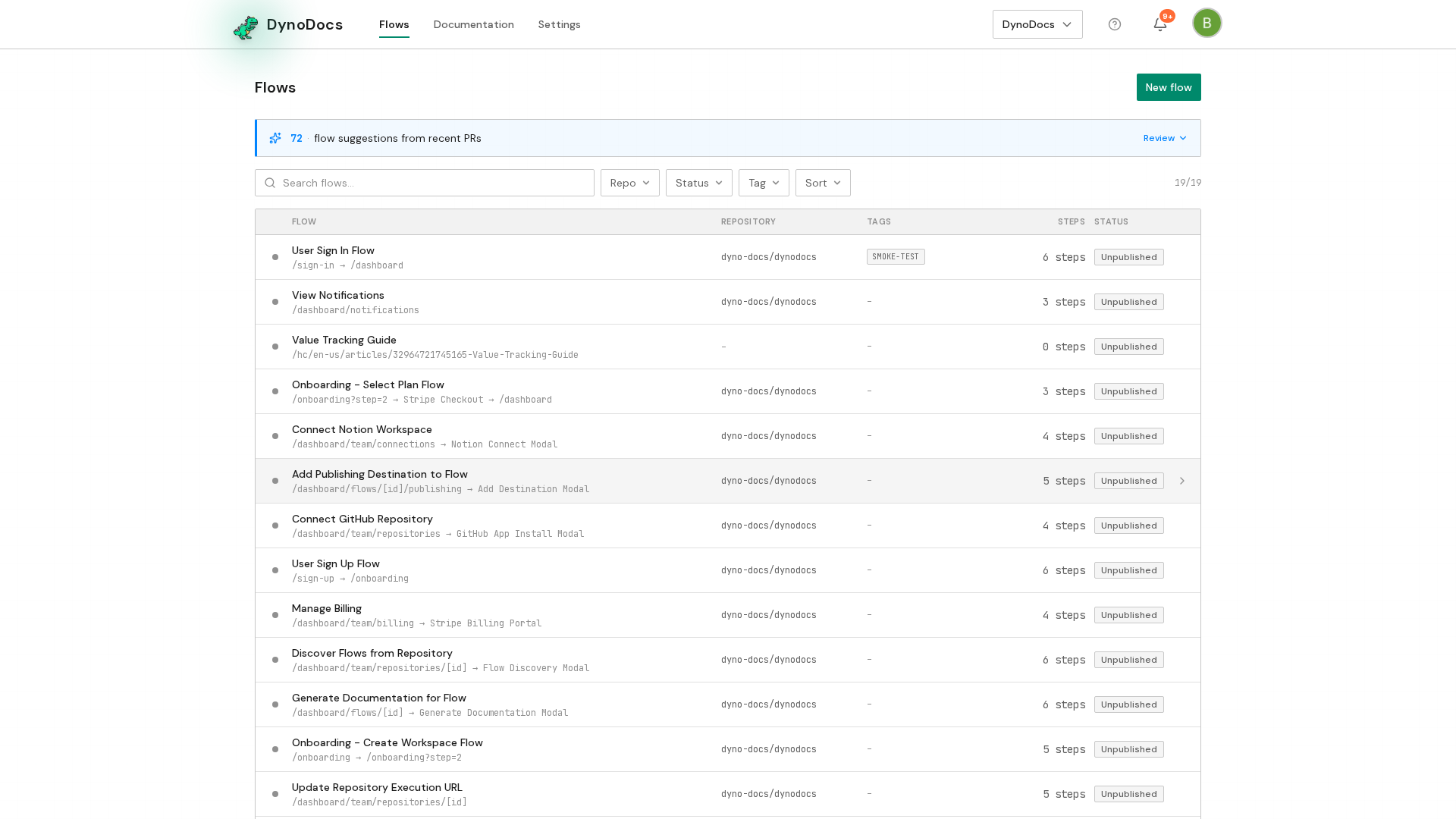
Open the Documentation list
From your dashboard, find the top navigation and click Documentation.
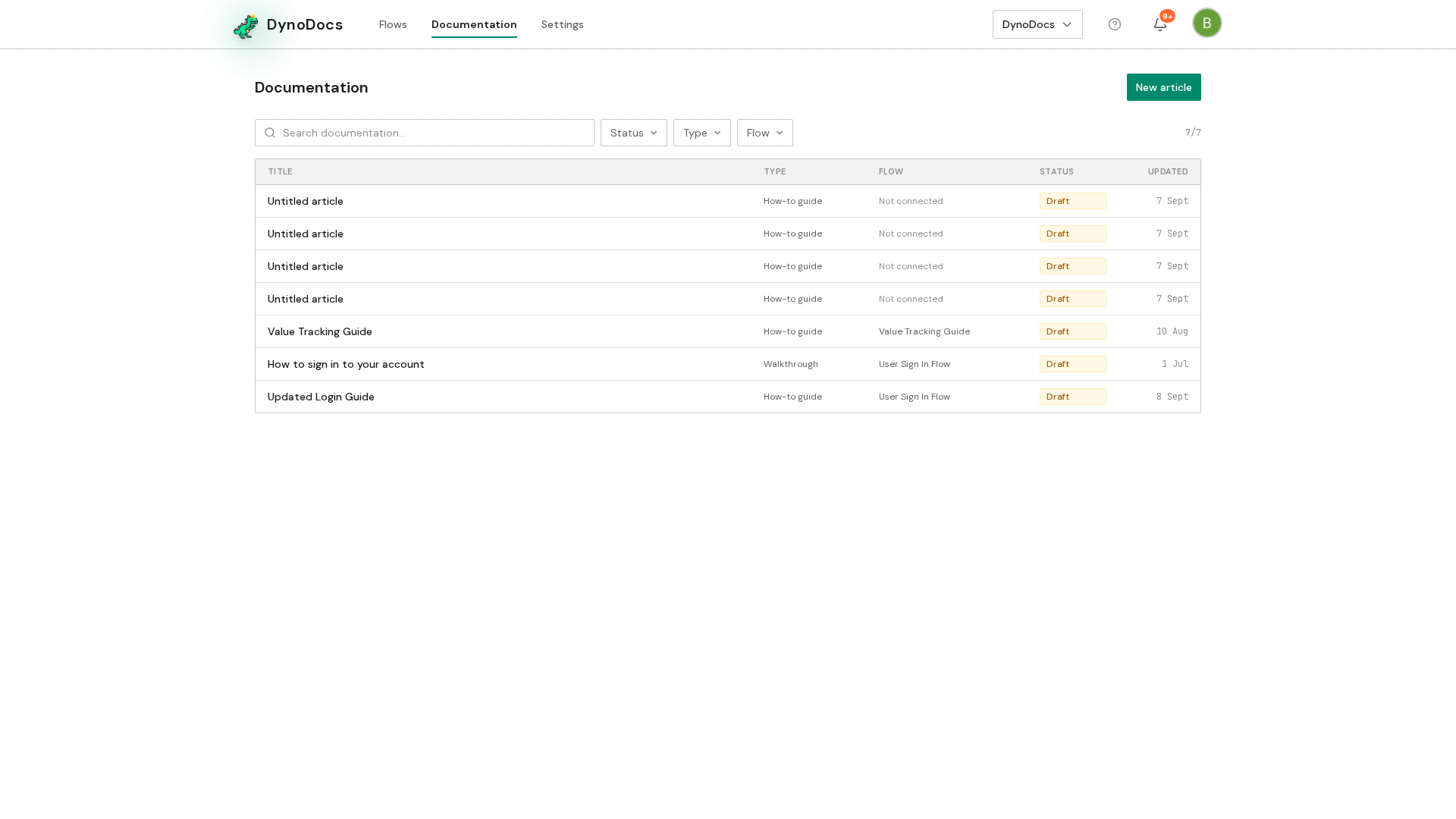
Create a blank article
Every guide in your workspace is listed here, whether it came from a flow or was written by hand. Click New article to start one of your own.
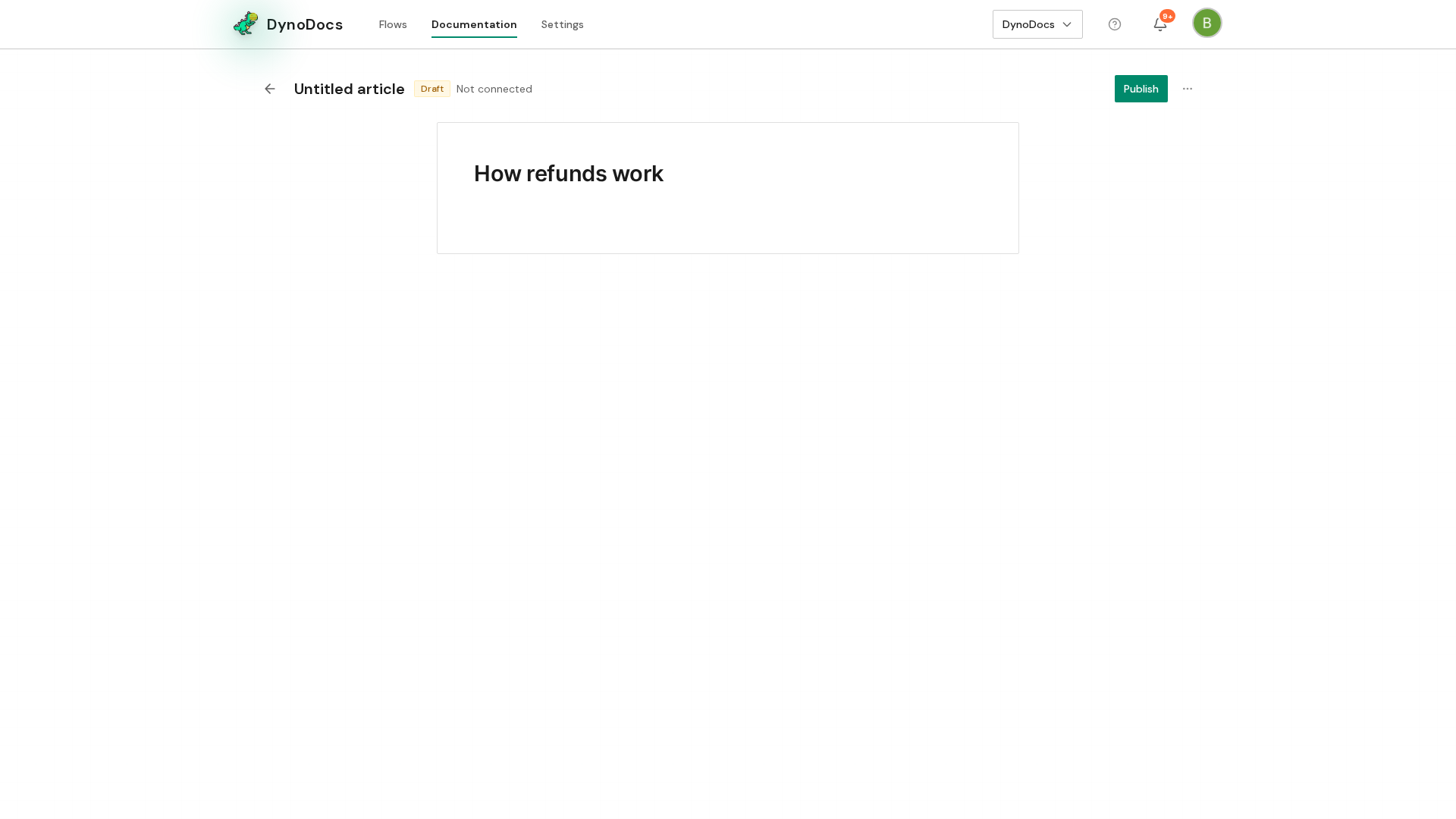
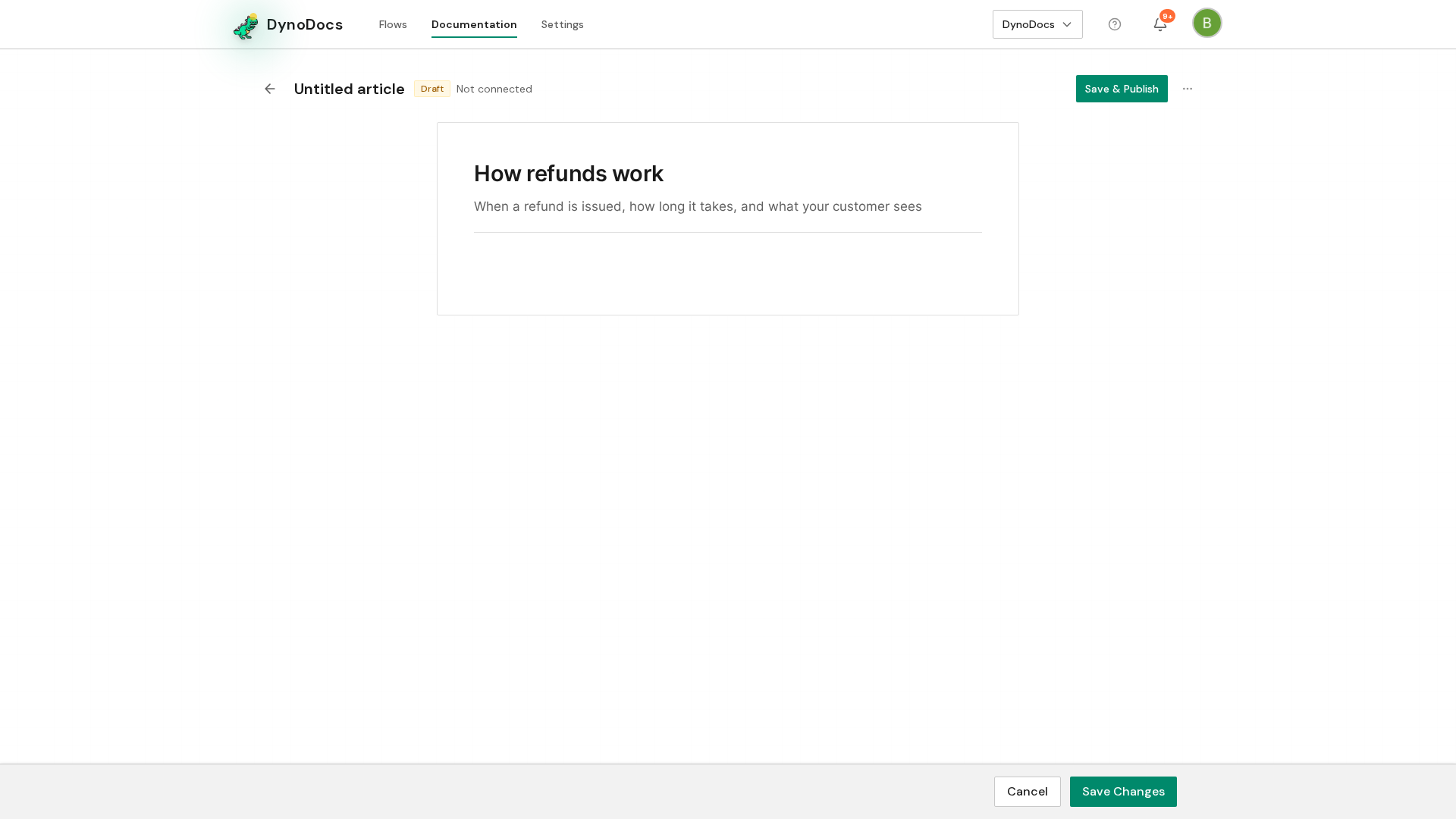
Add a title and summary
A blank article opens in the editor. It is not connected to any flow yet, so you can write it first and connect it to code later. Click the title at the top of the page and type the name of your article, phrased the way a reader would search for it.
Click the summary underneath and describe what the article covers in a line or two. The body below works the same way: click it and start writing.
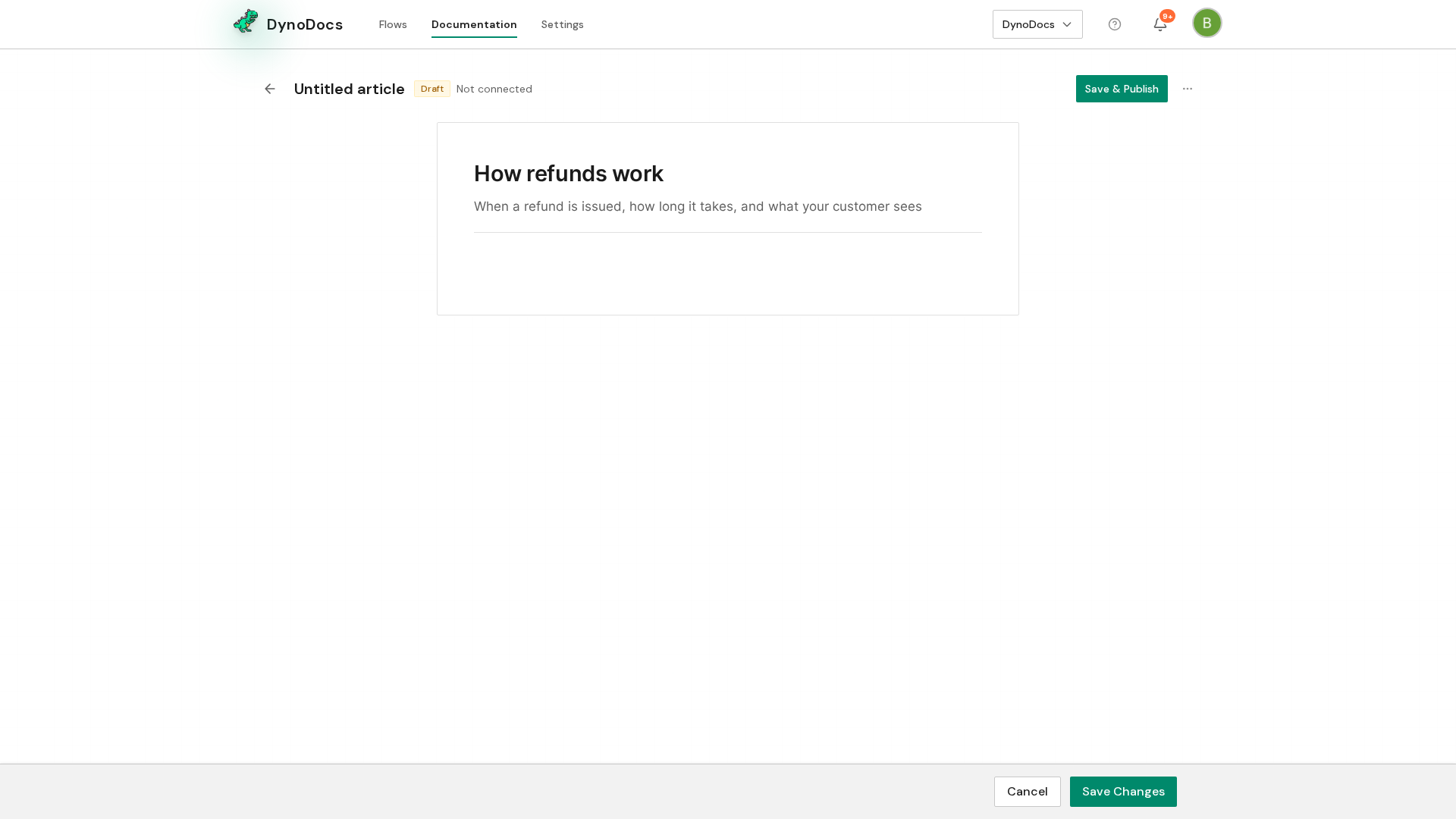
Save it as a draft
As soon as you make an edit, a bar appears at the bottom of the page with Save Changes and Cancel. Click Save Changes to keep your work as a draft until you publish it.
Prerequisites
- Access to a DynoDocs workspace where you can open the Documentation list
Troubleshooting
- You cannot find the save bar: it only appears at the bottom of the page once you have changed something, such as the title or summary.