
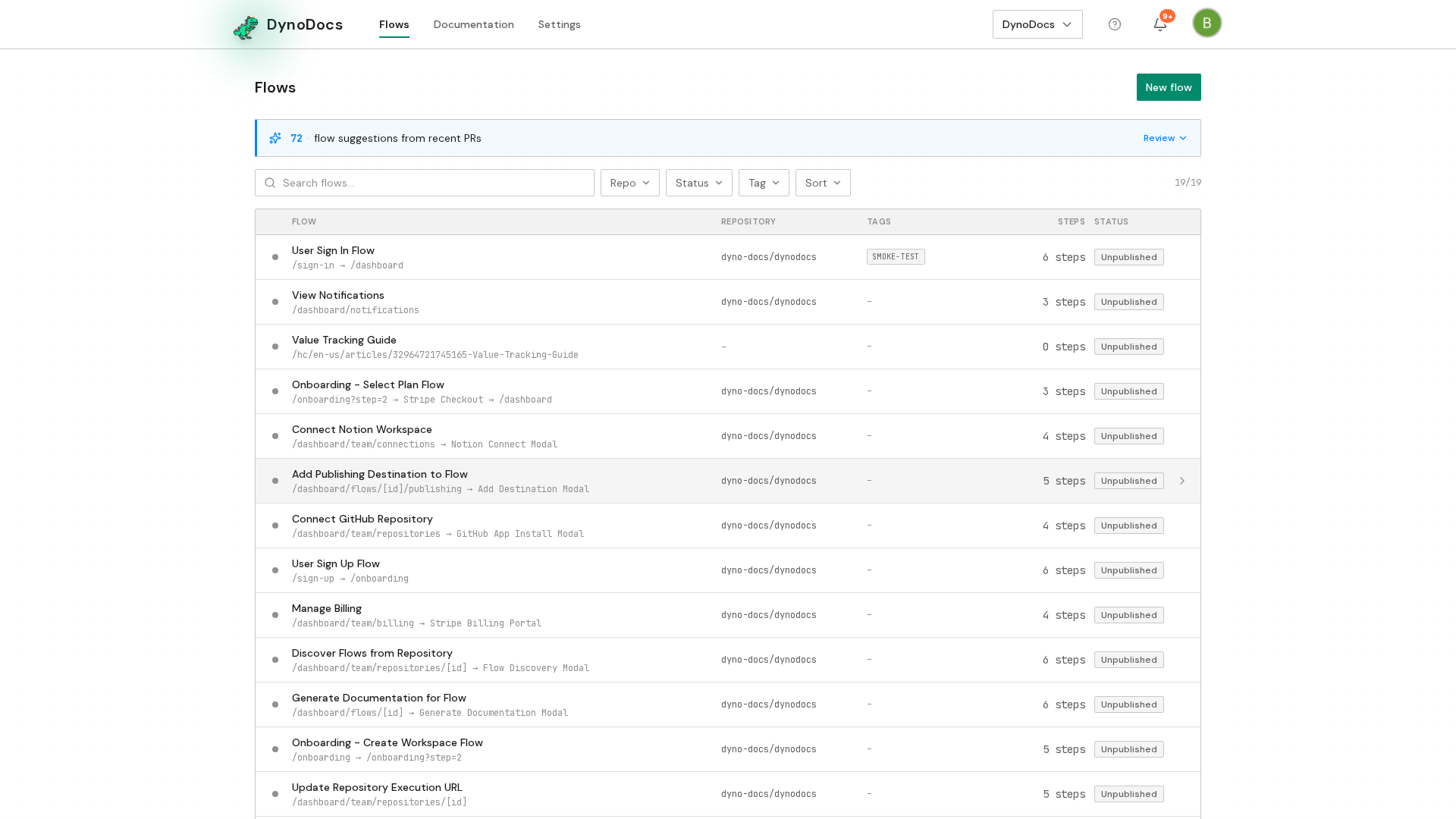
From your dashboard, click New flow.
A dialog opens with your repository already selected and a large text box for describing the flow. Describe what a user does, in your own words, as you would explain it to a teammate, for example the journey of changing a profile picture from account settings.
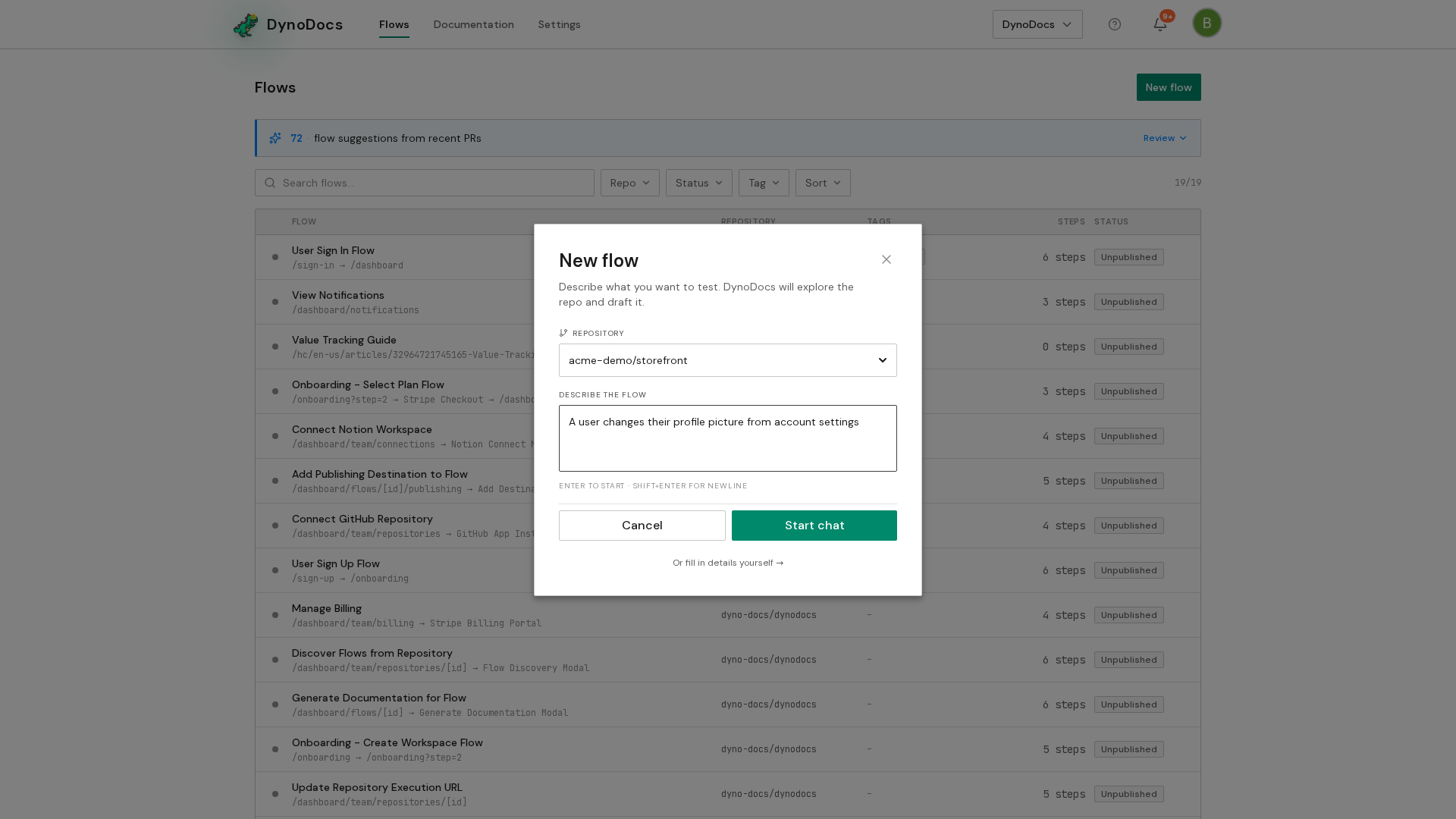
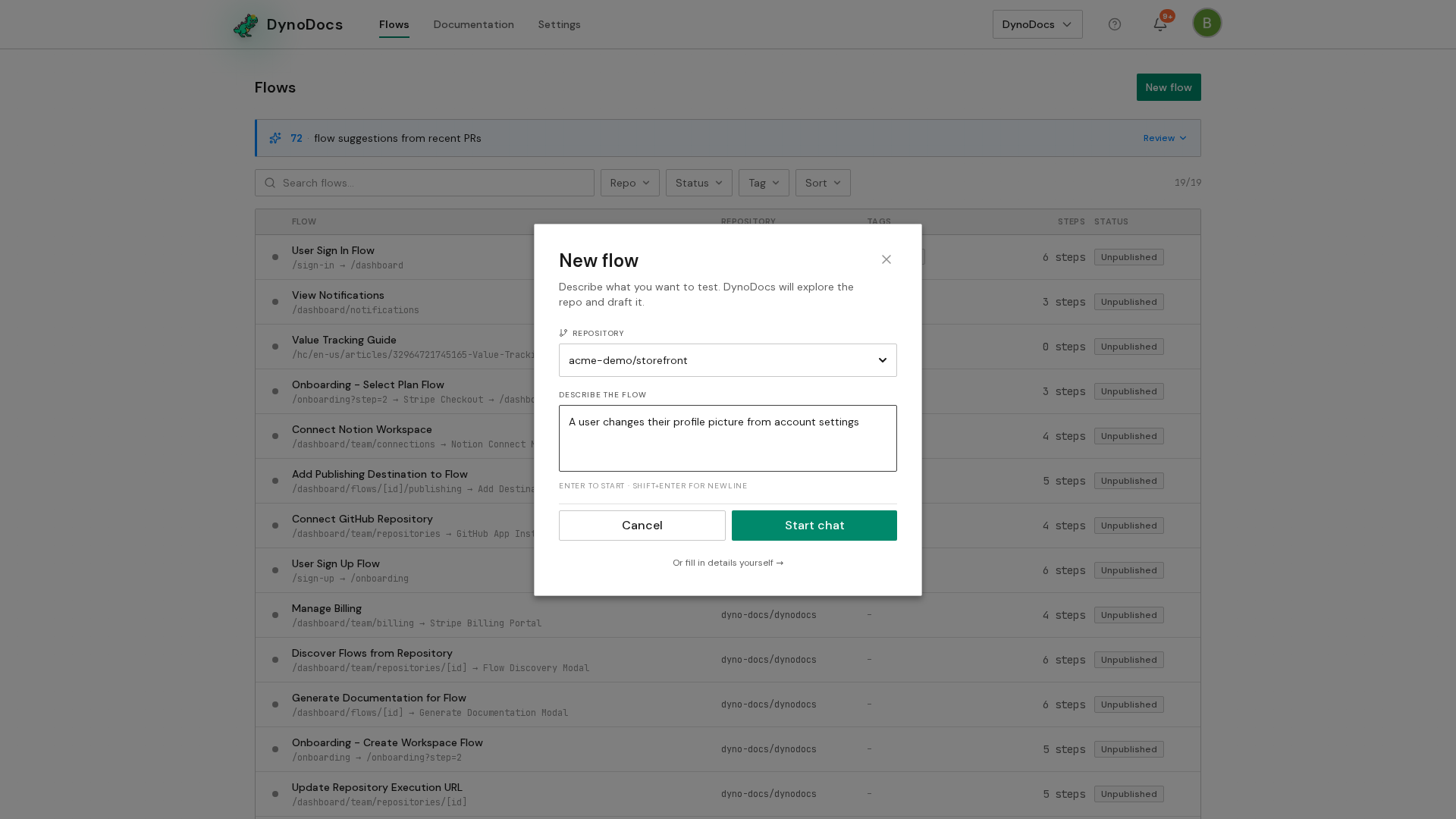
Click Start chat to send your description.
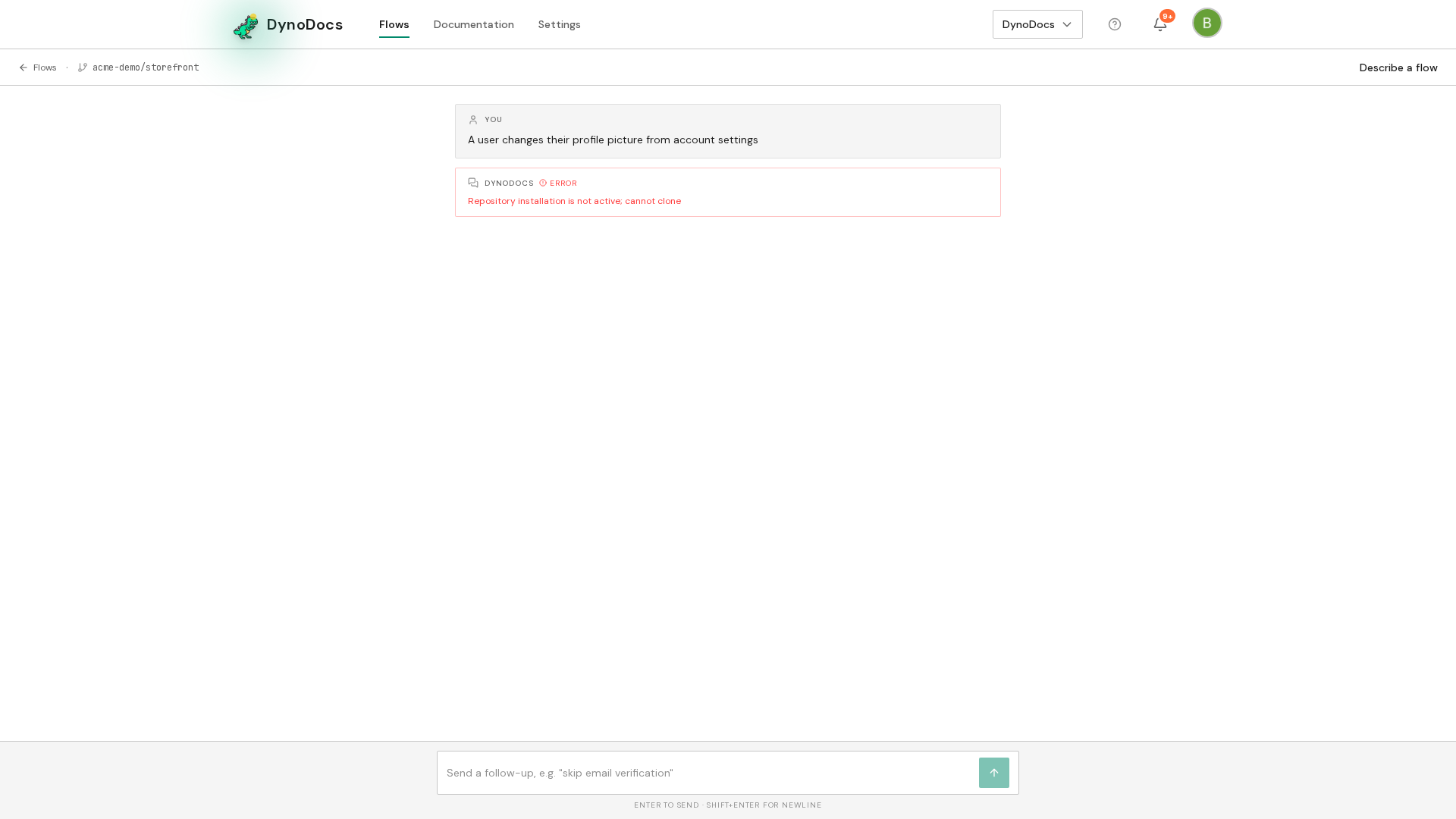
DynoDocs opens a chat and starts reading your code to work out the steps. After a short while it proposes a flow: a name, the route it starts on, and each step it will perform. Use the message box at the bottom of the chat to reply and refine it, for example to skip a step or start somewhere else, then click Save flow when it looks right.
Prerequisites
- A repository connected to DynoDocs, so the chat has code to read.
Troubleshooting
- The proposed steps are not the journey you meant: reply in the chat describing the change, such as skipping a step or starting on a different route, before you save the flow.