
When a run fails because a button was renamed or moved, DynoDocs shows a Fix it banner on the flow's Executions tab that hands the failure straight to the assistant, so you do not have to hunt for the broken step yourself.
Open the failed run
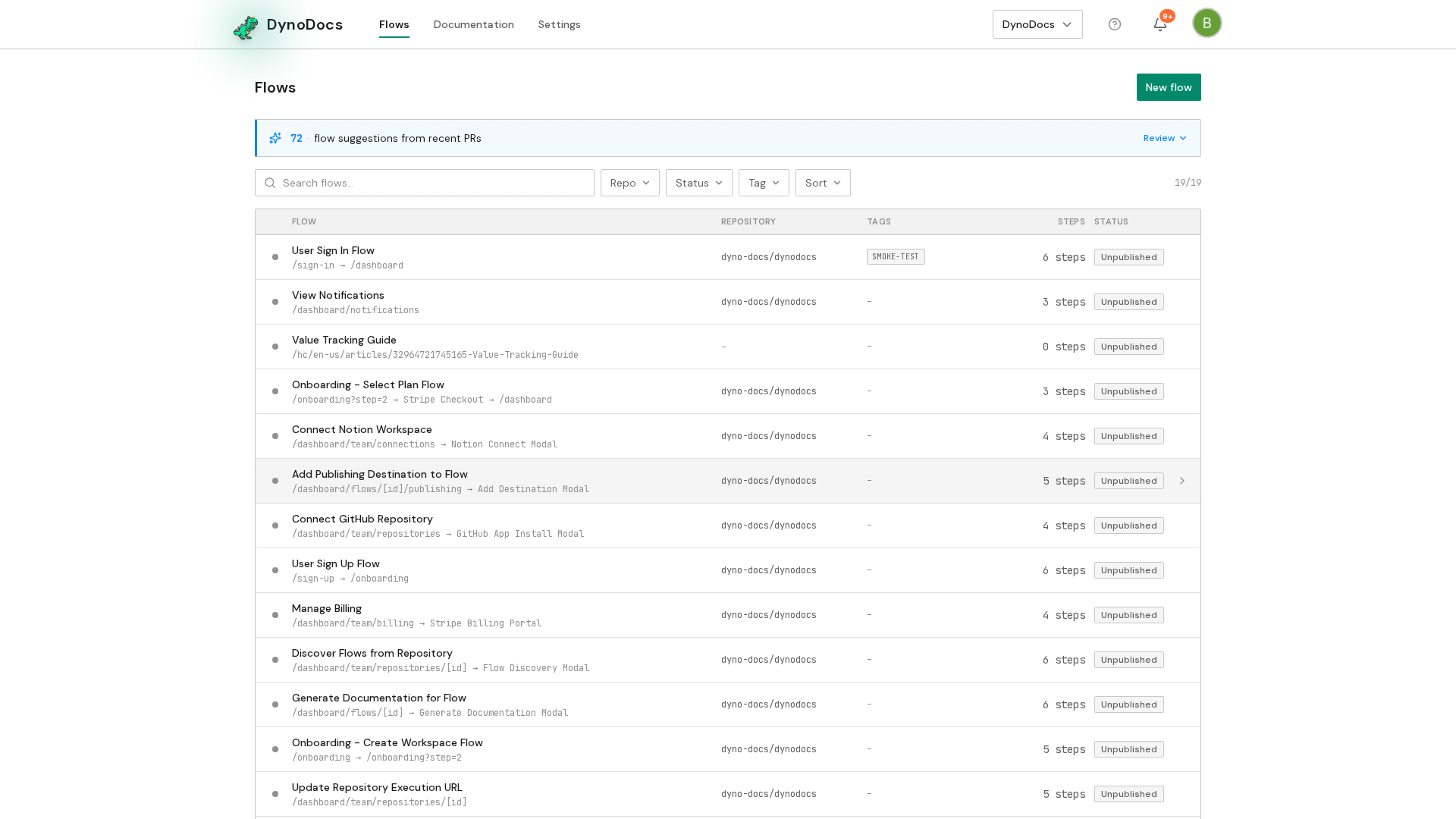
Your flows are listed on the flows page. Open the flow you want to work on.
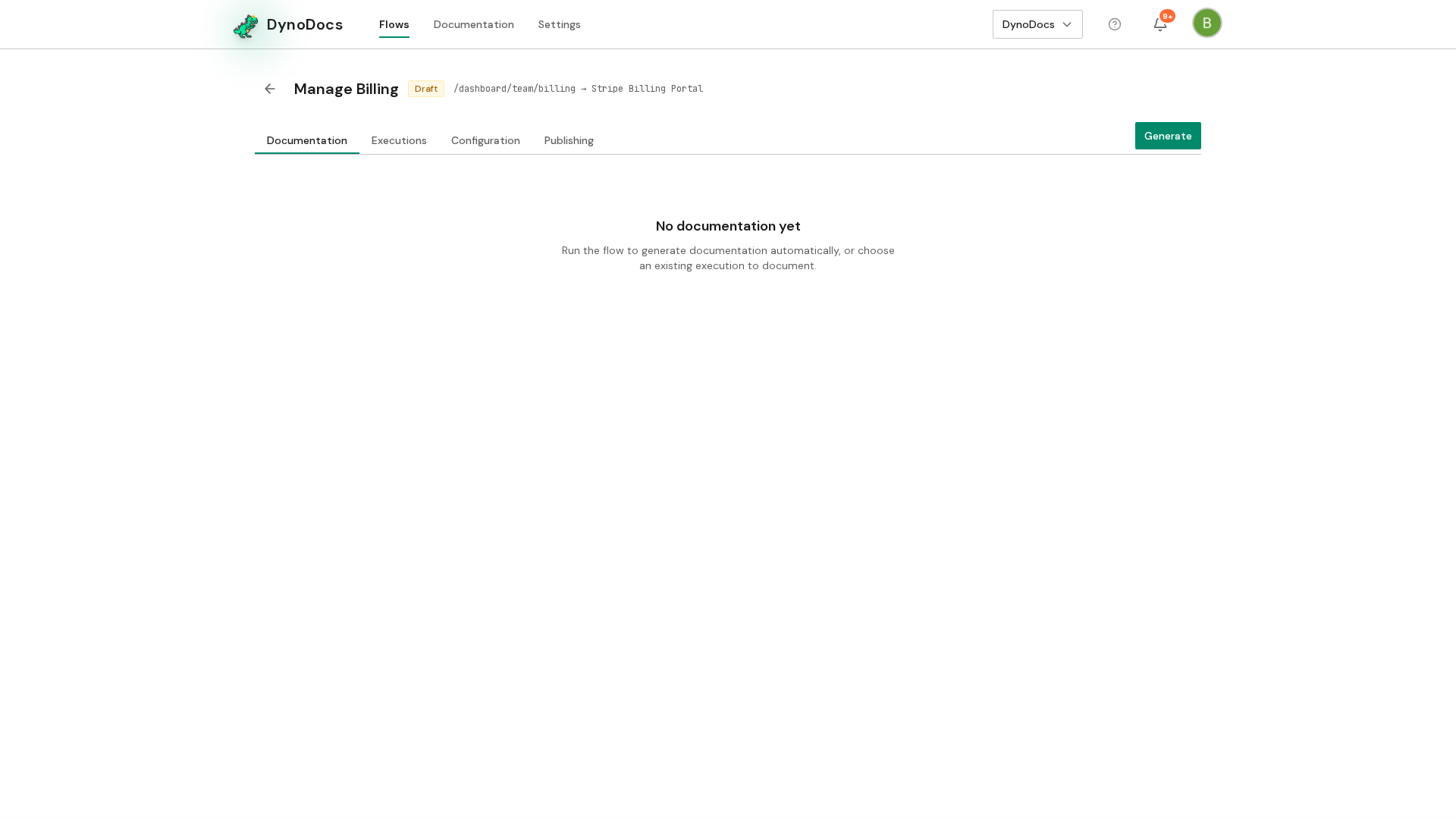
The flow opens. Select the Executions tab, which lists every run of this flow.
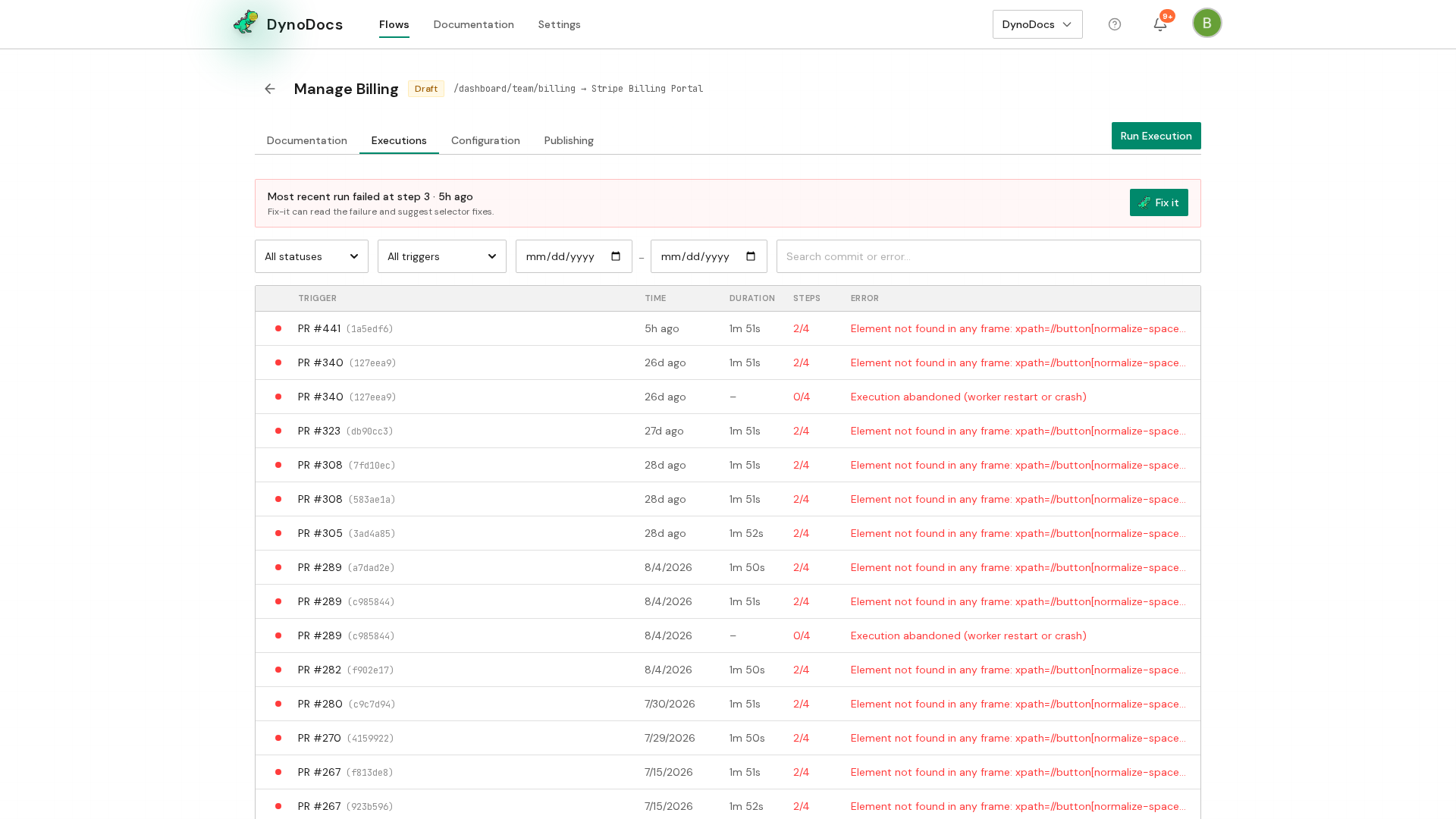
When the most recent run failed, a banner at the top of the list names the failing step. Click Fix it.
Ask the assistant what changed
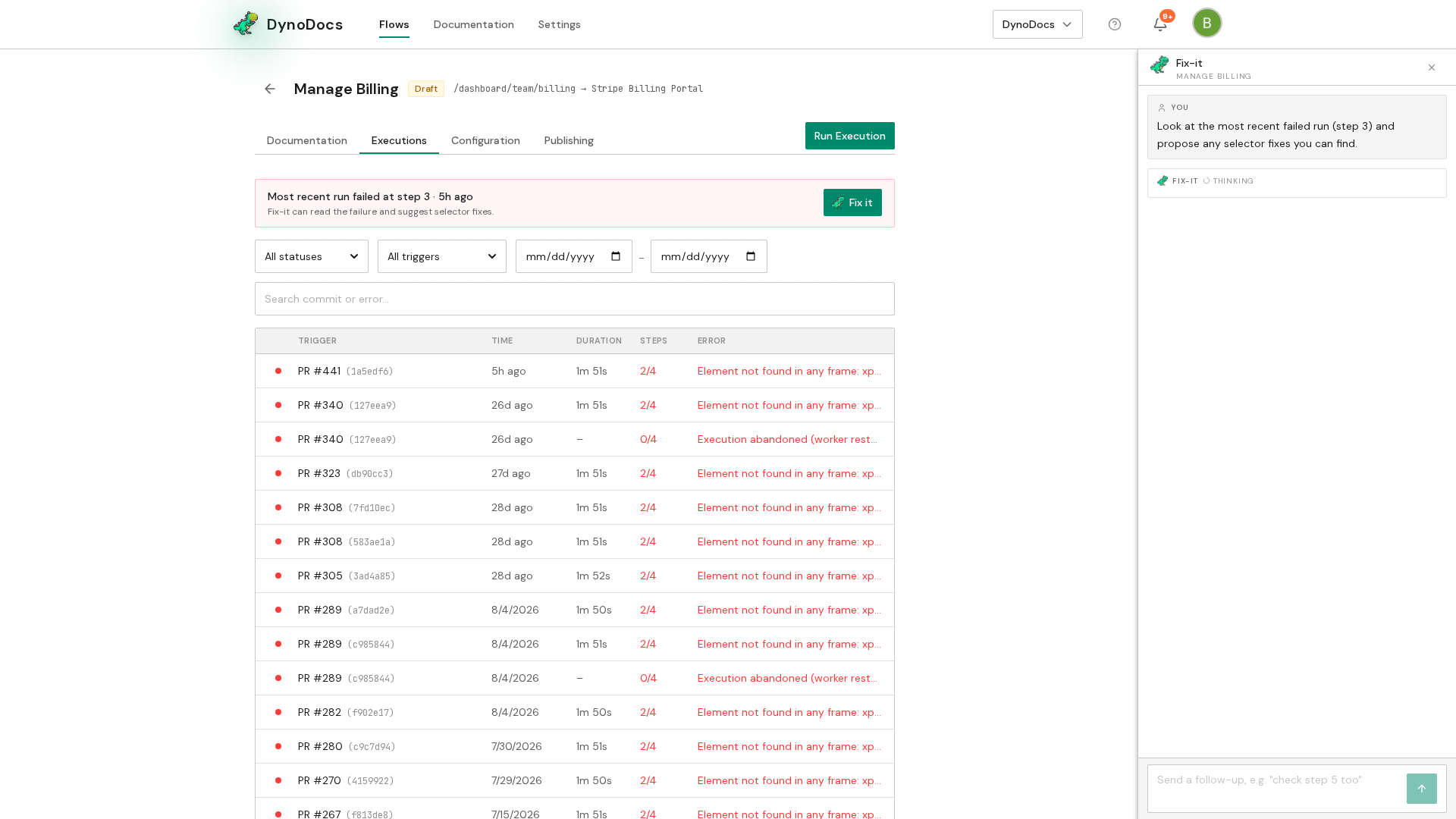
The assistant opens beside the flow, having already looked at the failed run and the page it stopped on. Type your question about the step that failed, such as why it can no longer find a button, into the message box at the bottom of the assistant panel and send it.
Prerequisites
- A flow whose most recent run failed
Troubleshooting
- No Fix it banner on the Executions tab: the banner appears at the top of the list only when the most recent run of that flow failed.