
Open the Members page
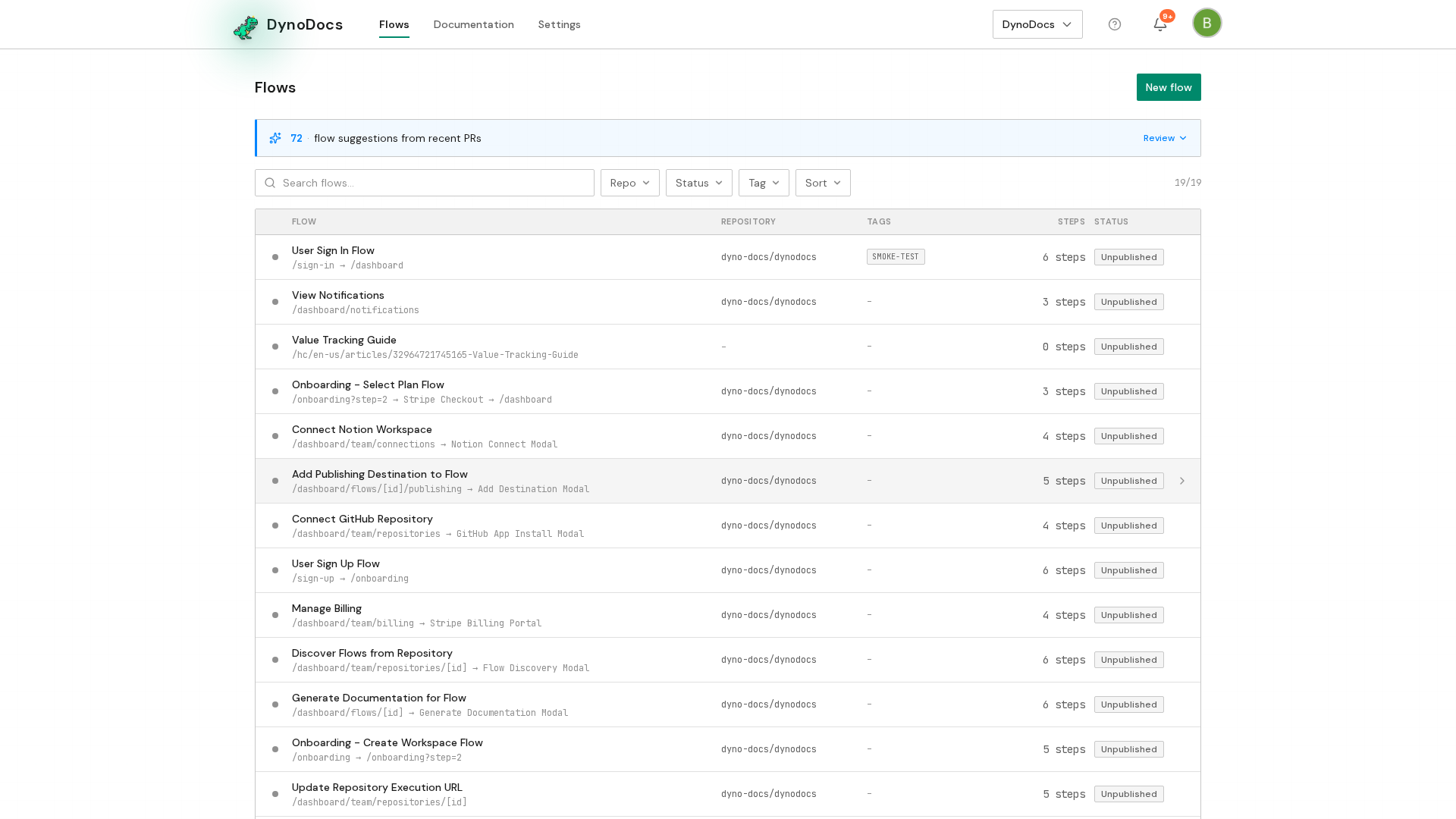
From your dashboard, open Settings in the top navigation.
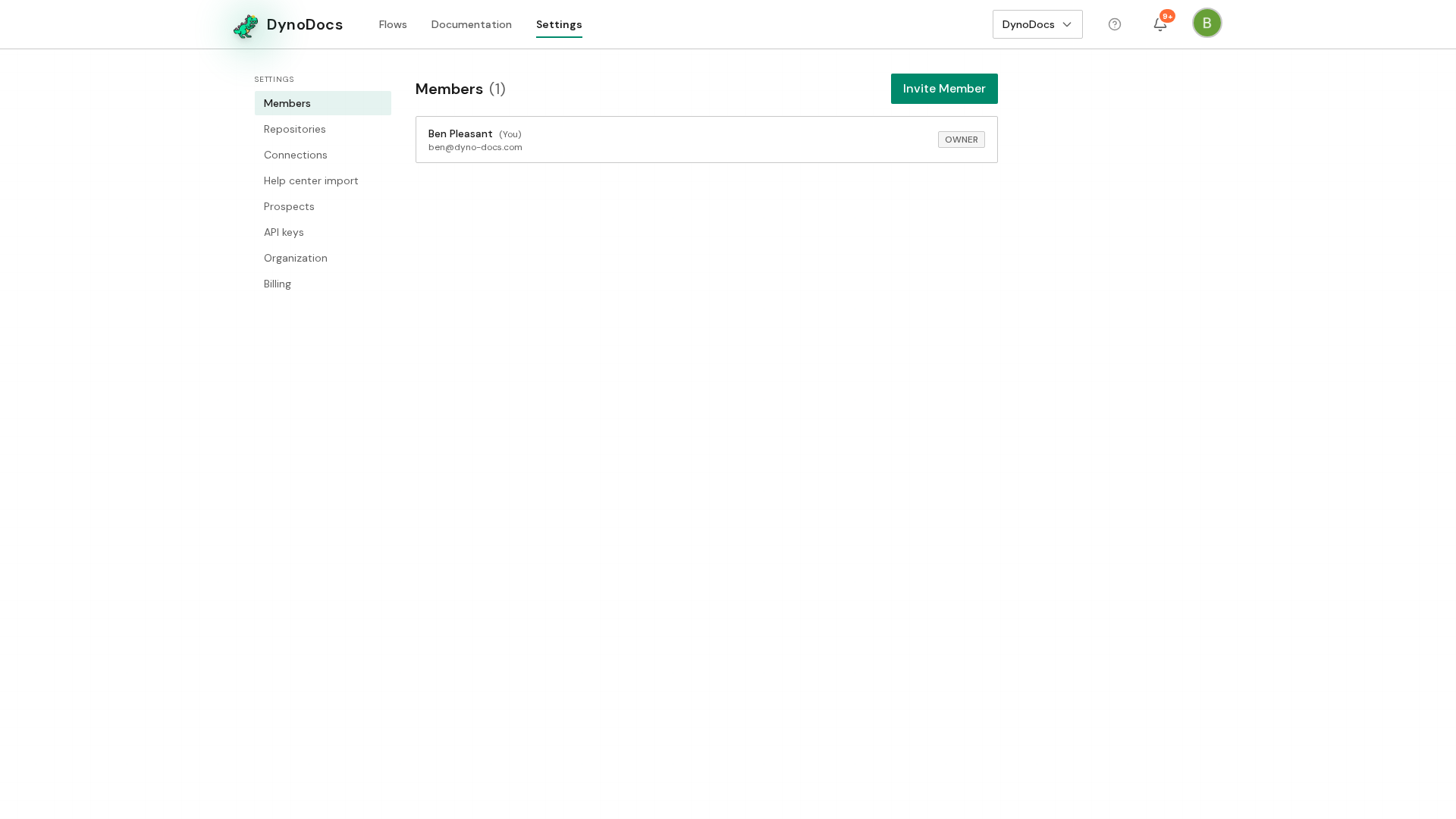
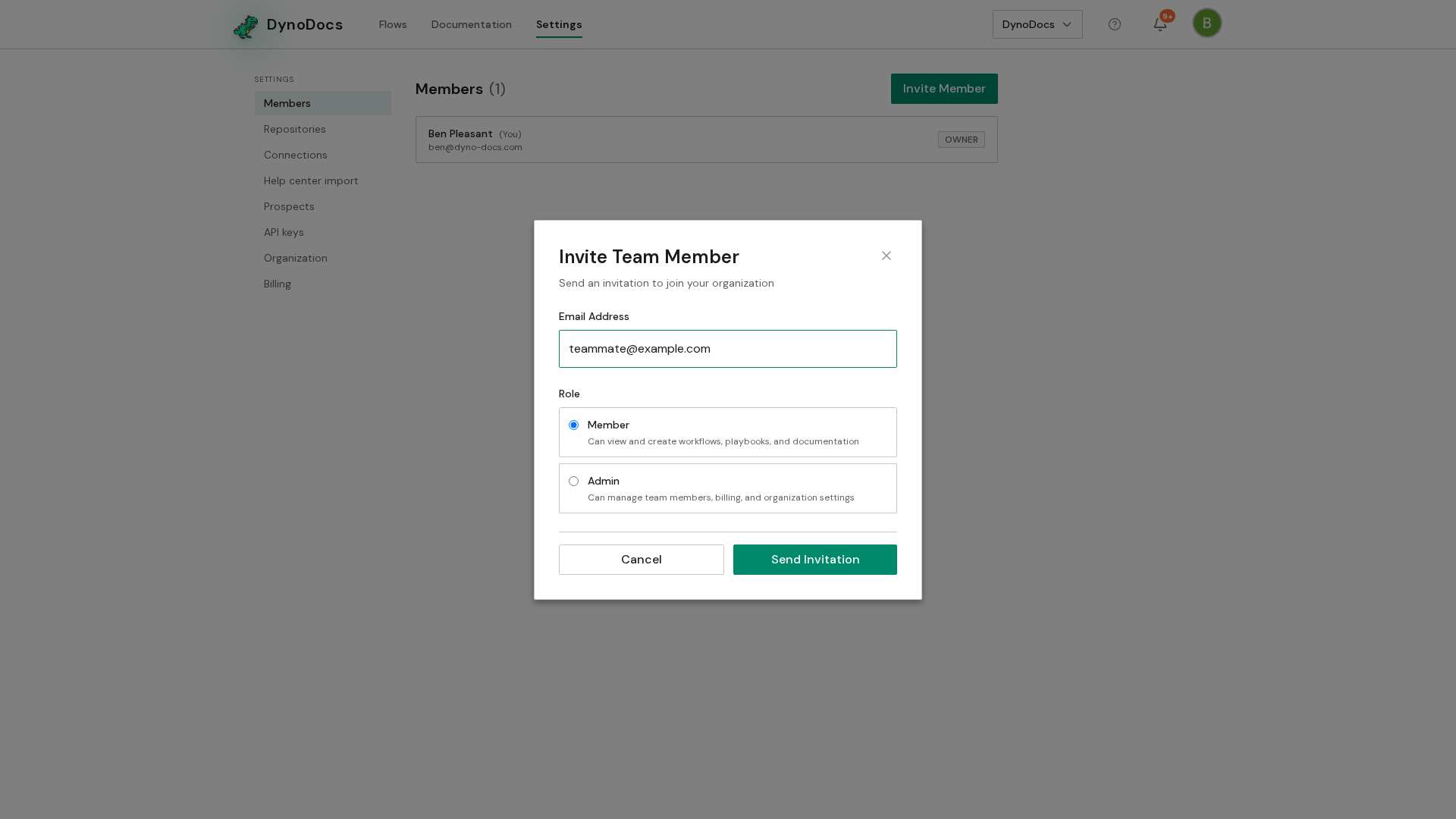
Settings opens on Members, which lists everyone in your organization along with any invitations still open. Click Invite Member.
Send the invitation
A dialog opens asking for the new member's details. In the Email Address field, enter the email address your colleague should use to join.
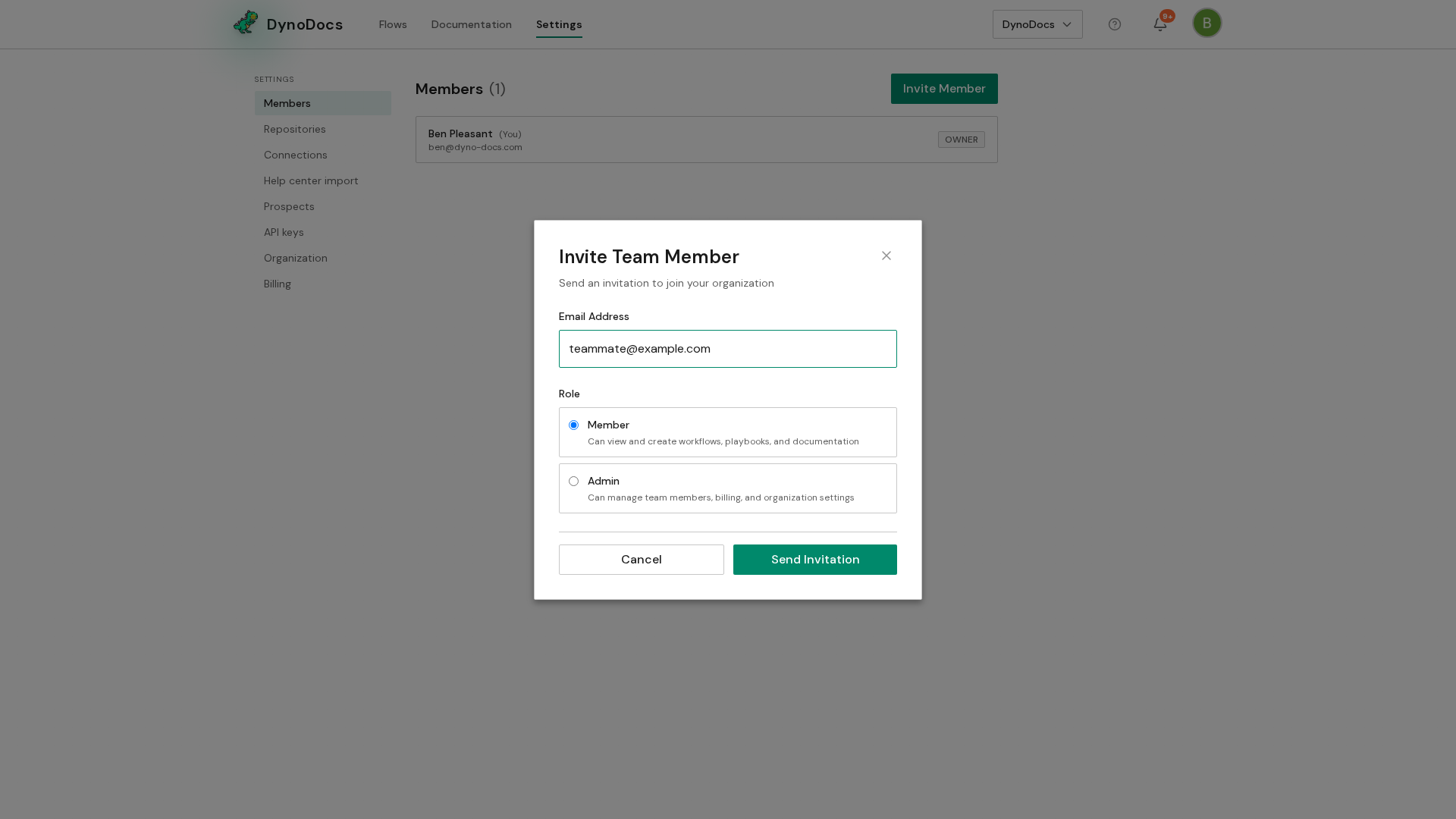
Choose the role this person should have. Pick Member if they only need to work with flows and guides, or Admin if they also need to manage the organization, its repositories, connections and billing.
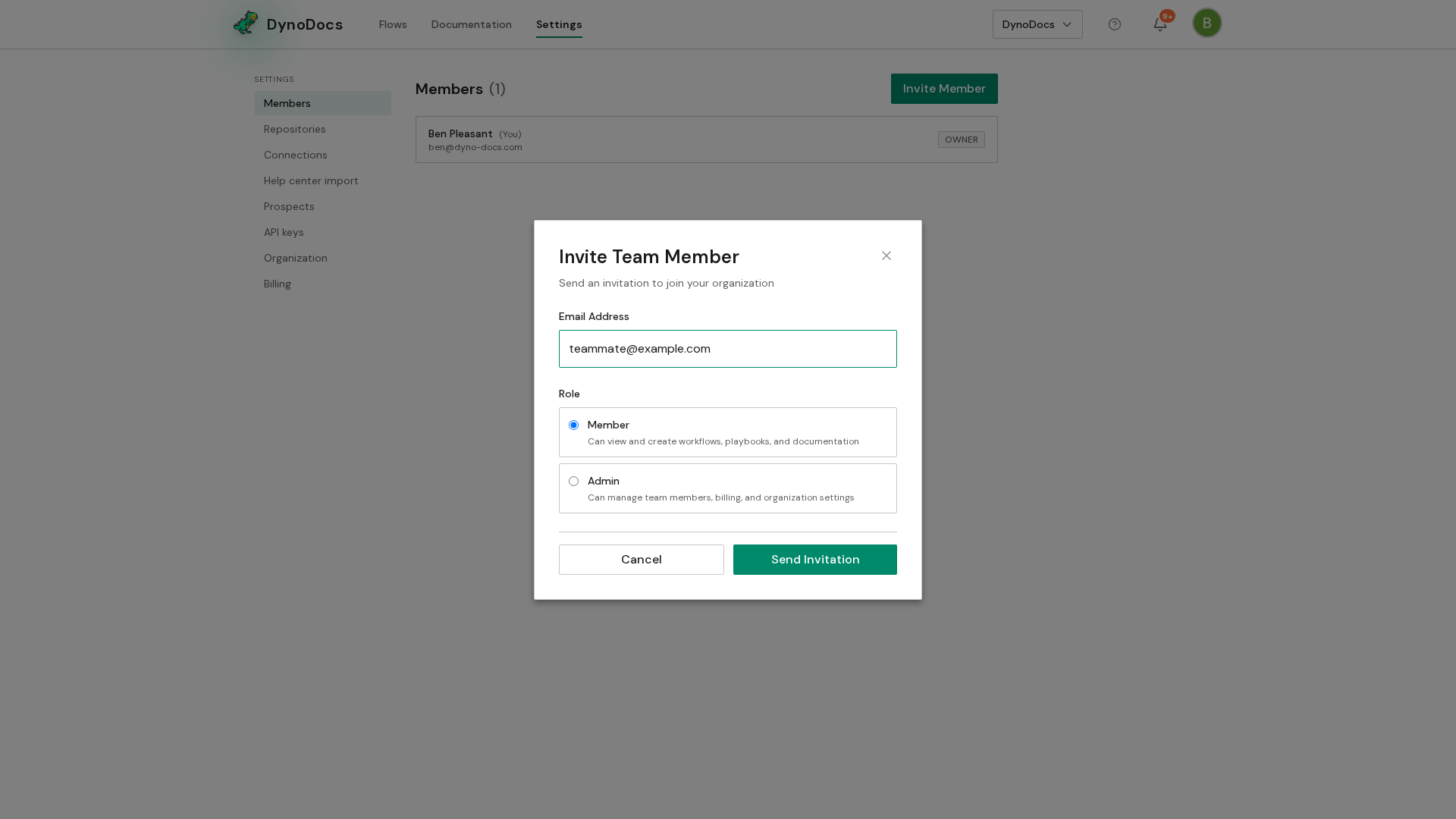
Click Send Invitation to invite them.
Note
The person receives an email with a link to join, and their invitation shows as pending until they accept it.
Prerequisites
- You need admin access to your DynoDocs organization to invite new members.
- Have the email address your colleague should join with.
Troubleshooting
- You don't see the Invite Member button on the Members page: inviting people is an admin capability, so check that your own role in the organization is Admin.
- The person hasn't joined yet: their invitation stays pending until they open the email and accept the link, so it will keep showing on the Members page until then.