
A recorded action finds its element by the text it was recorded with, so renaming a button in your application leaves that action looking for wording that no longer exists. To fix it, update the action's selector text by hand on the flow's Configuration tab.
Open the flow's Configuration tab
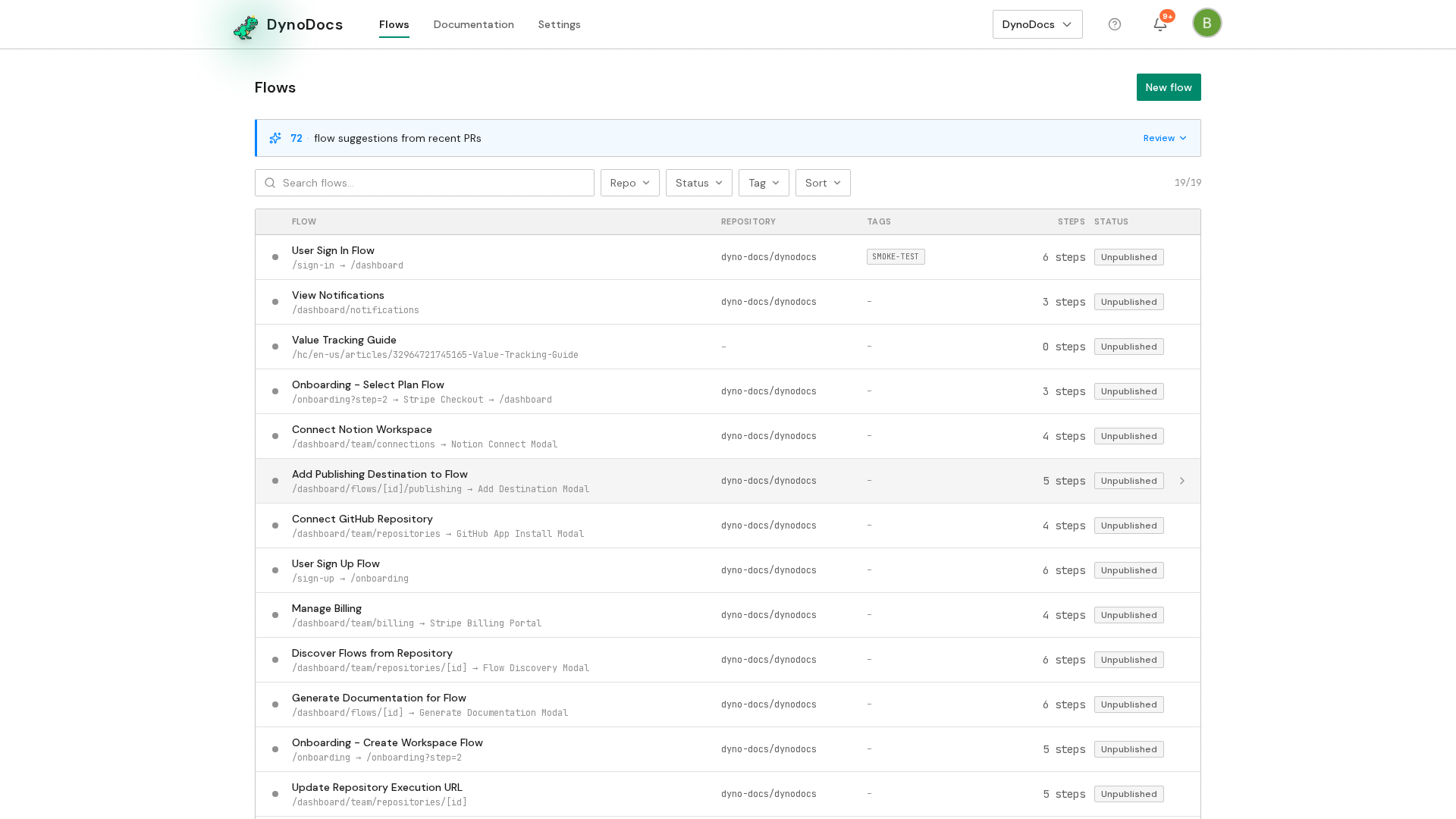
Your flows are listed on the Flows page. Click the flow you want to work on. Its guide is shown first, with Executions, Configuration and Publishing alongside it.
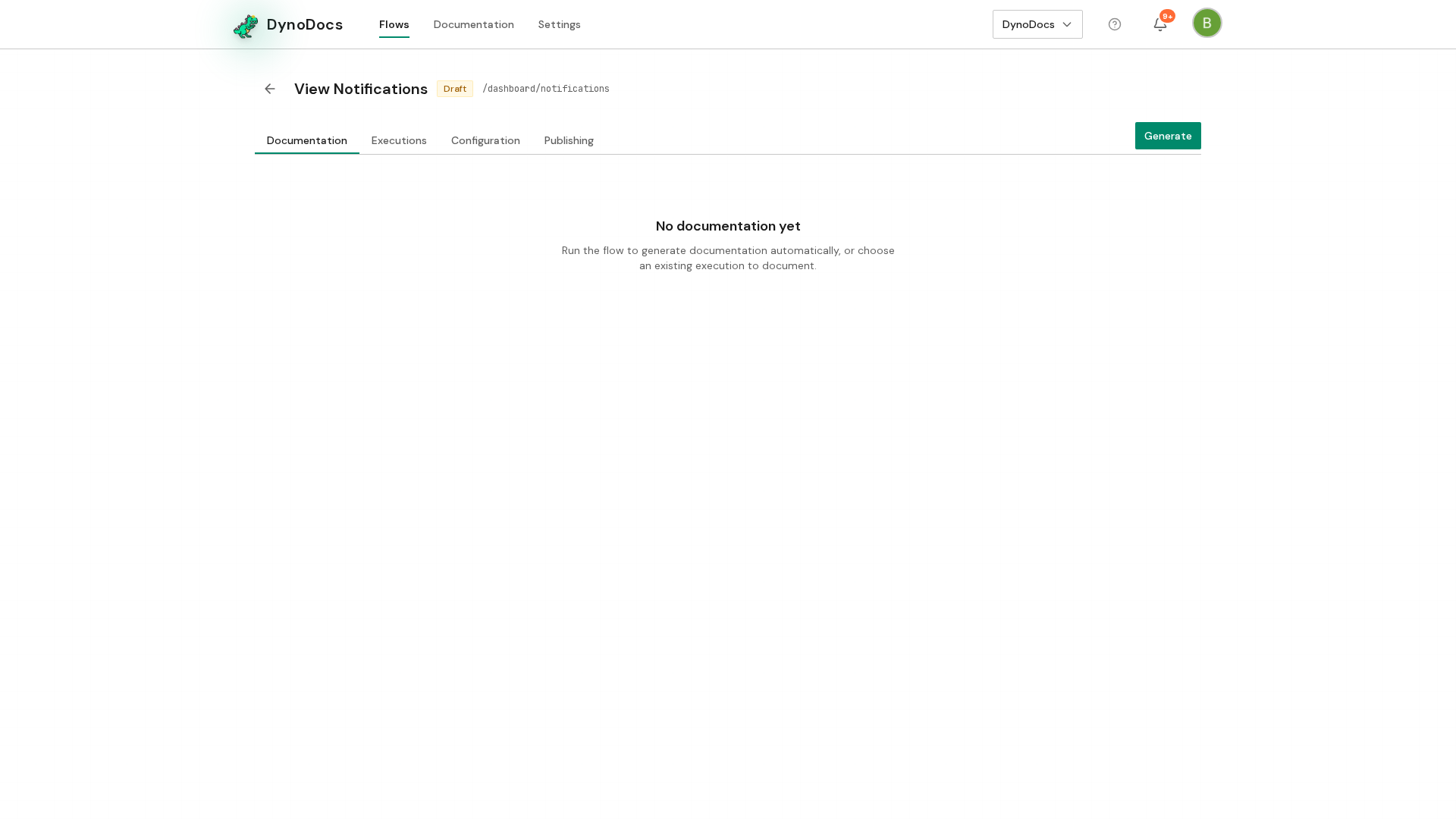
With the flow open, click the Configuration tab, where the flow's actions are edited.
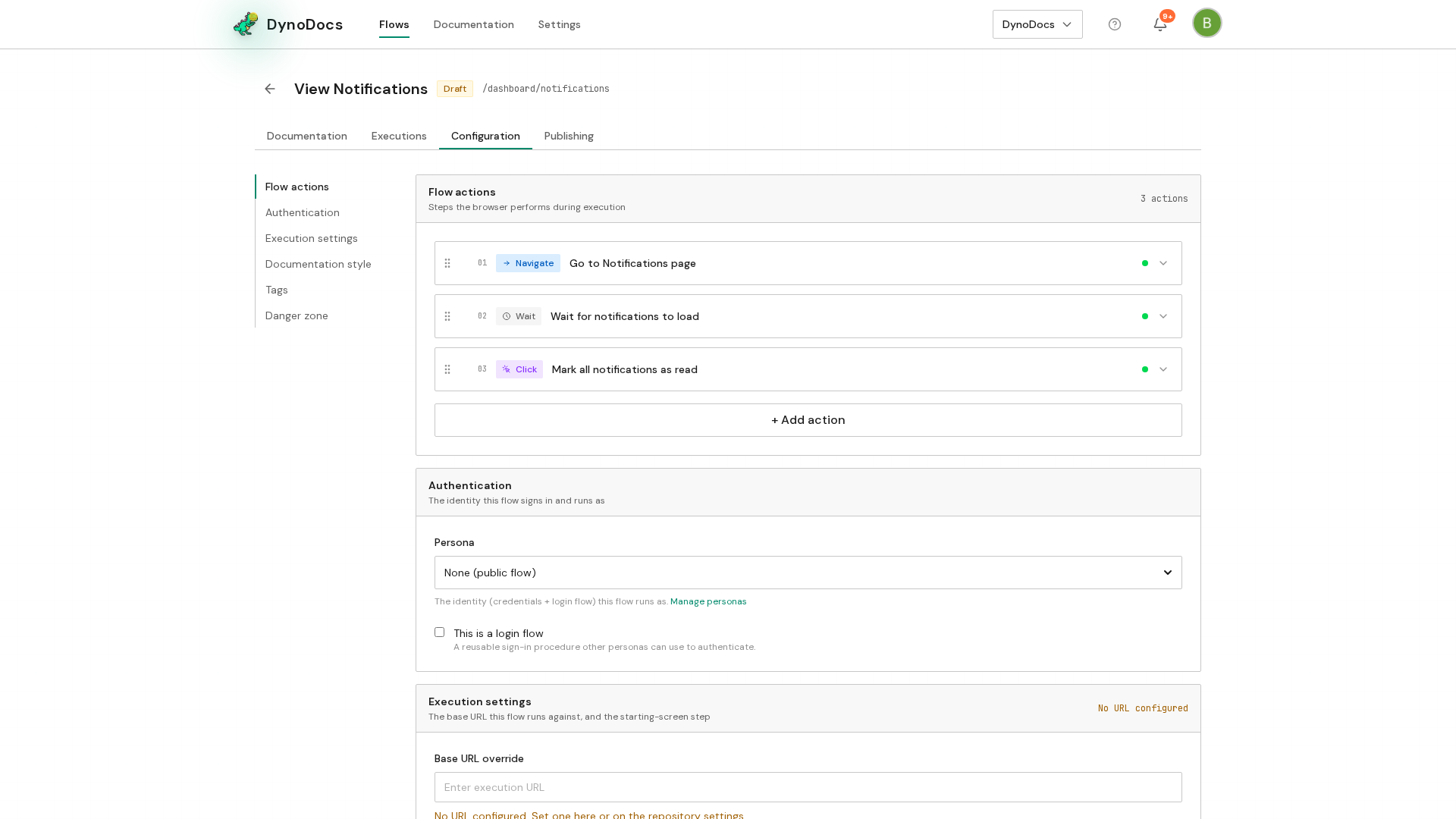
Update the action's selector text
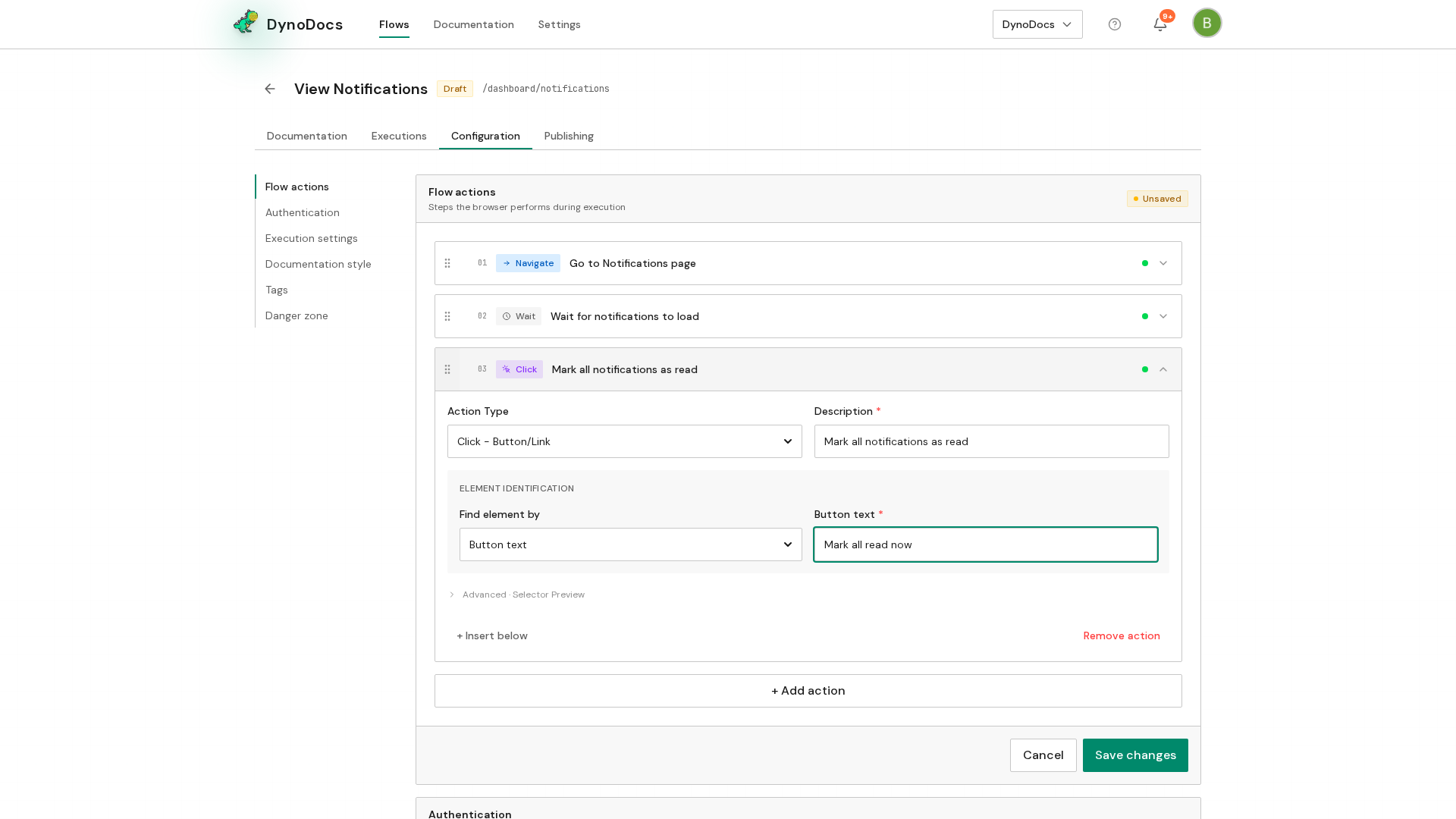
Under Flow actions, the flow's actions are listed in the order they run. Click the action whose selector you want to change, and its card expands to show how it finds its element.
The expanded action shows a Button text field holding the text it currently looks for. Replace that value with the wording the button shows now in your application.
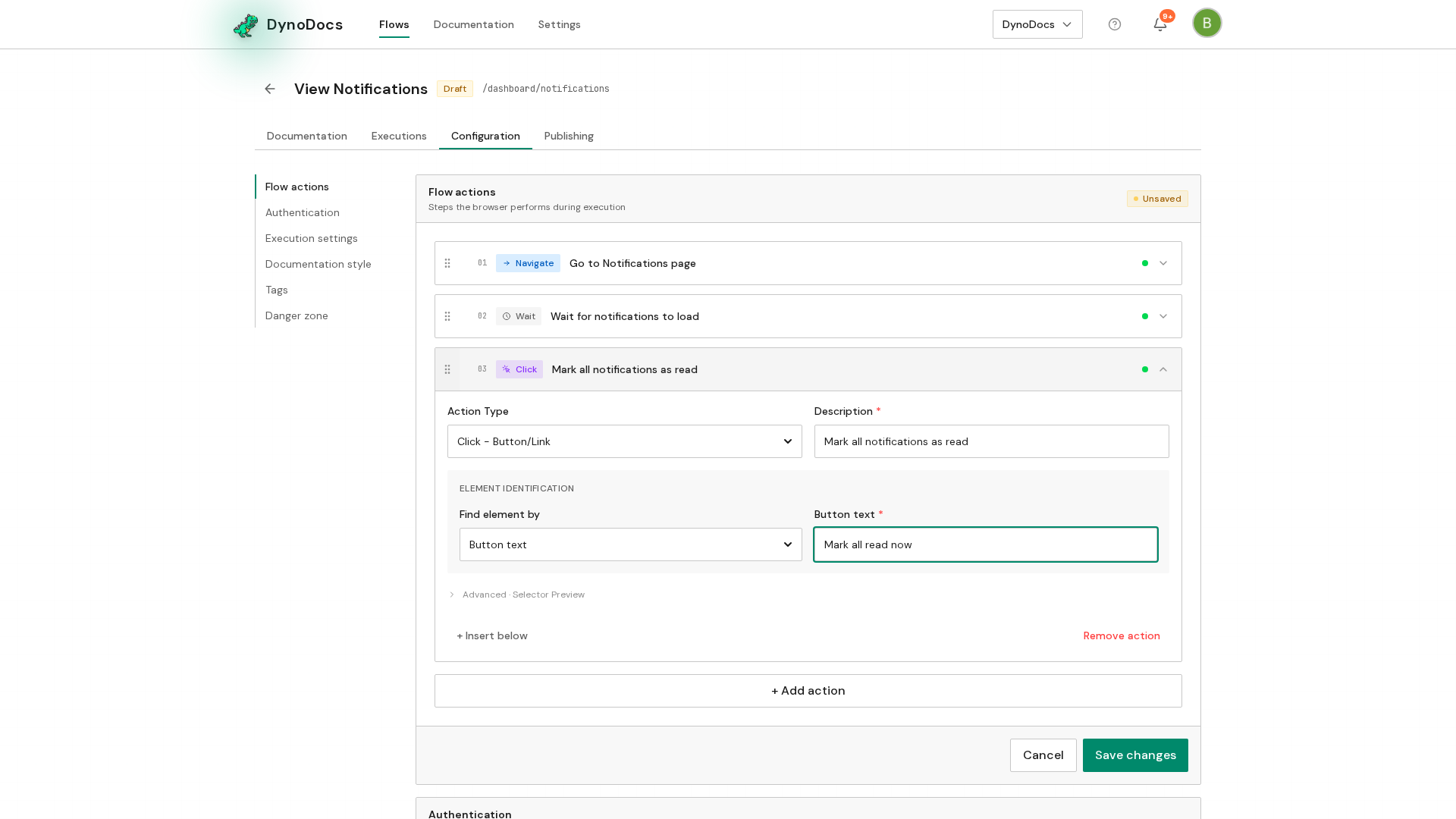
A bar appears at the bottom of the section with Save changes and Cancel. Click Save changes to keep the new selector text.
Prerequisites
- The flow you want to fix already exists in DynoDocs.
- You know the button's current wording in your application.
Troubleshooting
- The action still does not match: check that the text in the Button text field is exactly what the button displays, including capitalization.
- Your edit is not kept: make sure you clicked Save changes in the bar at the bottom of the section rather than Cancel.