
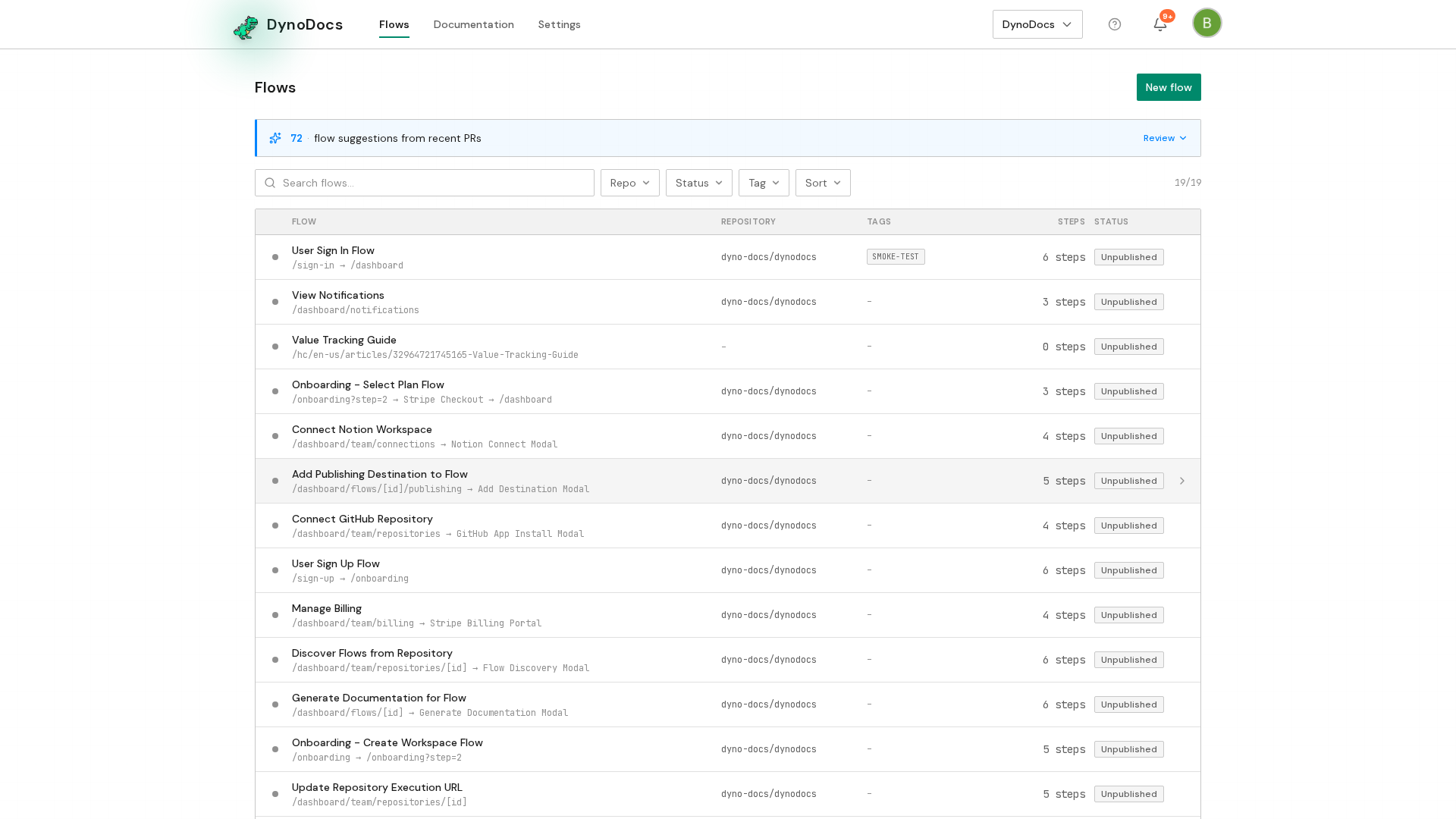
Your flows are listed on the flows page. Open the flow you want to work on.
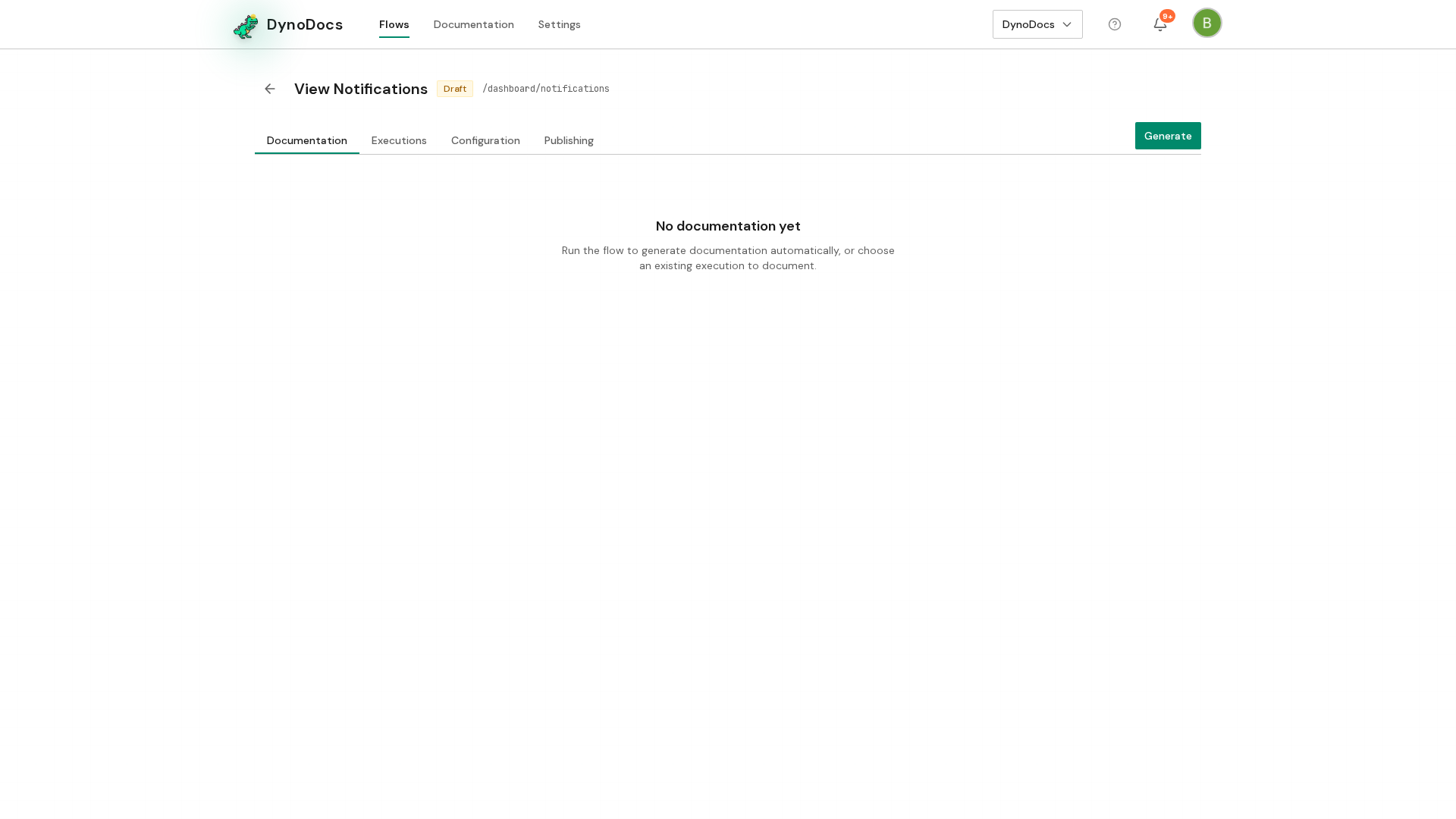
The flow opens. Select the Configuration tab.
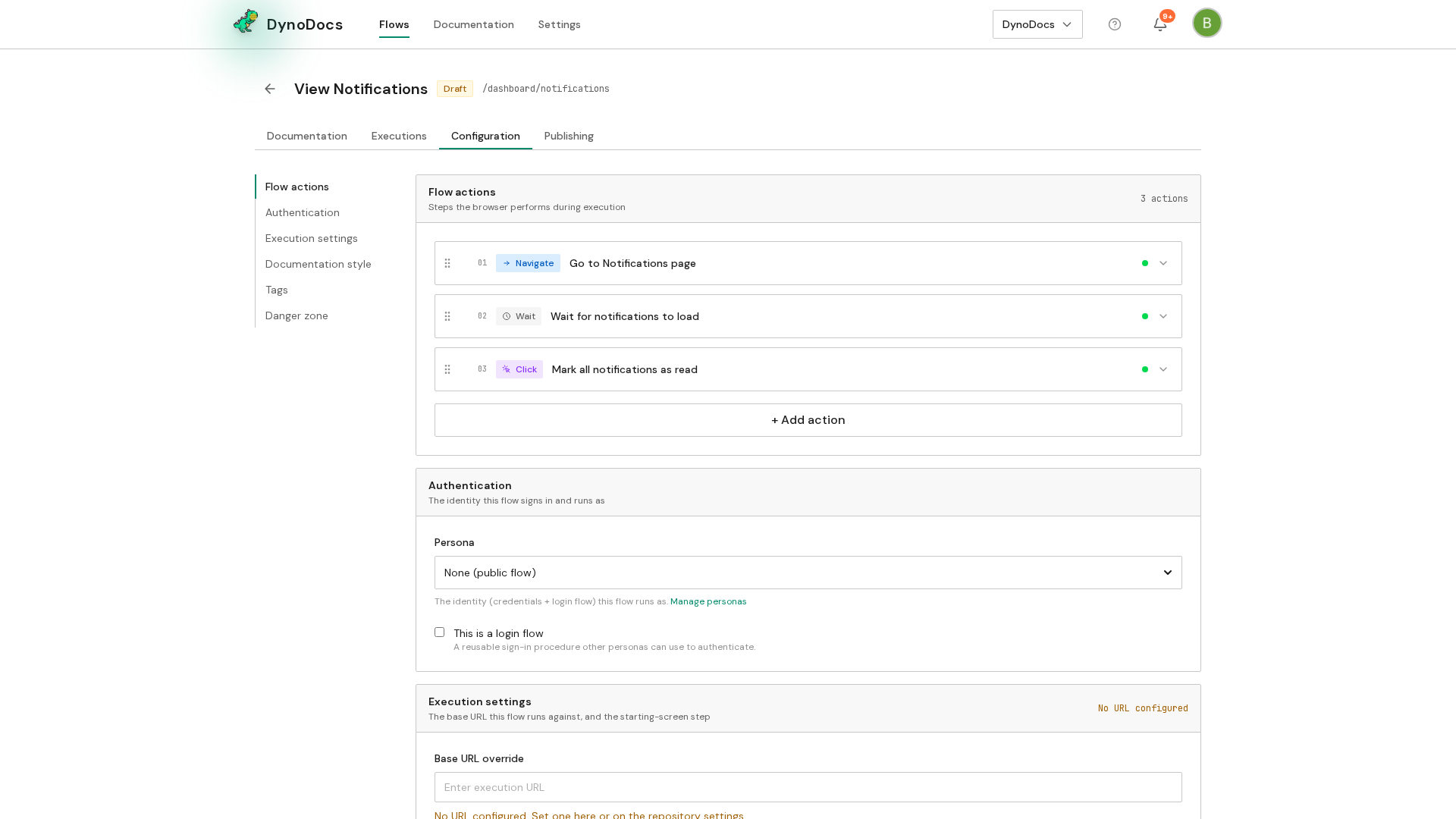
The Authentication section shows which identity the flow runs as. Choose the persona you want the flow to sign in as from the Persona list.
Note
A flow with no persona runs as a signed-out visitor. Personas are created on the repository's page under Settings, and they hold the login details and account state a flow needs.
Prerequisites
- A flow already saved in DynoDocs
- A persona created on the repository's page under Settings, holding the login details the flow needs
Troubleshooting
- The flow's runs land on a login page: check the Authentication section on the Configuration tab, since a flow with no persona selected runs as a signed-out visitor.