
A screenshot of a busy screen can leave readers hunting for the one control you meant. A highlight box marks the exact spot. You draw it on a draft guide, opened from the Documentation area of DynoDocs.
Open the guide you want to edit
From your dashboard, open Documentation in the top navigation.
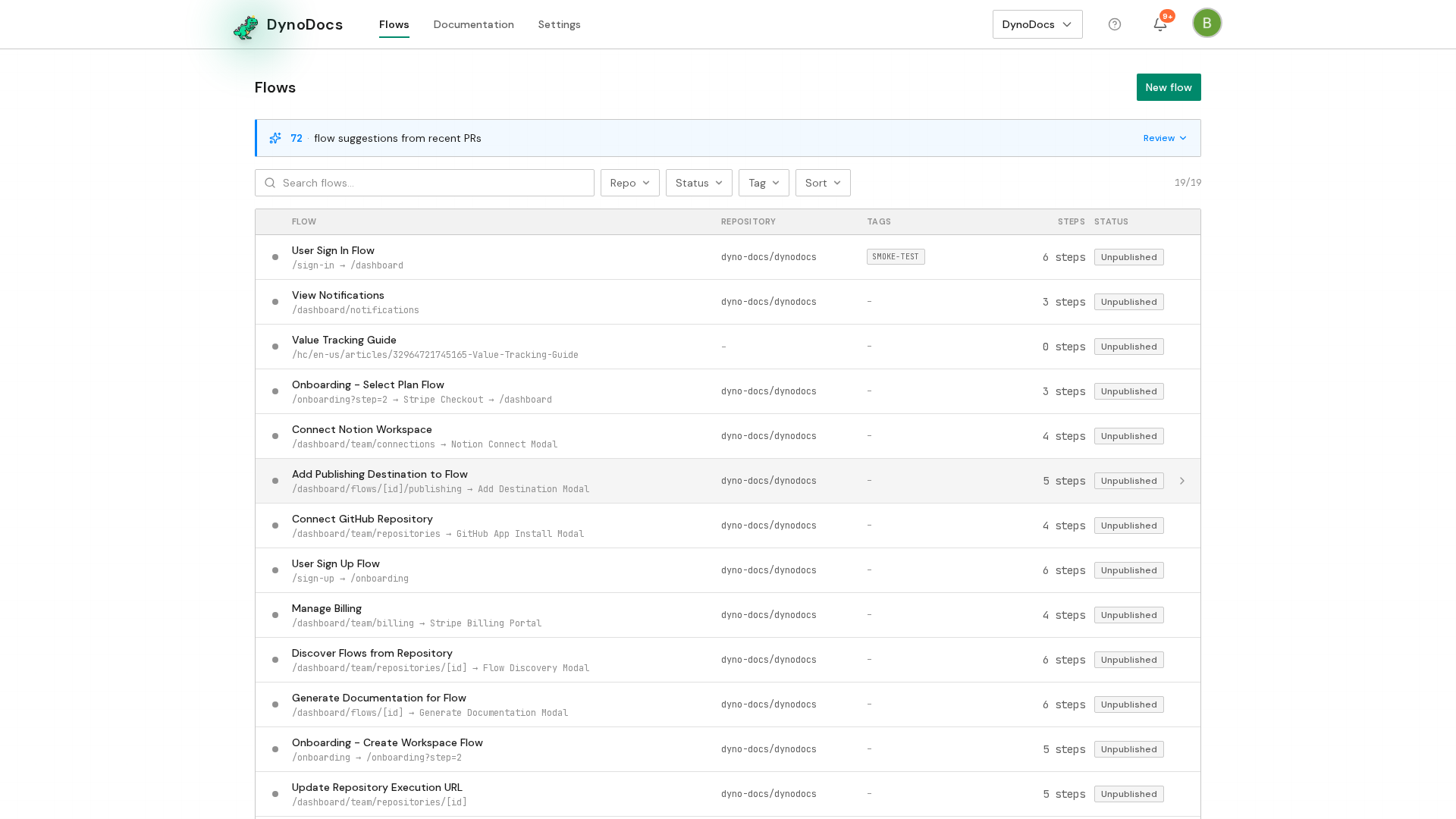
Every guide in your workspace is listed here. Click the draft guide that contains the step you want to highlight.
Draw the highlight on the screenshot
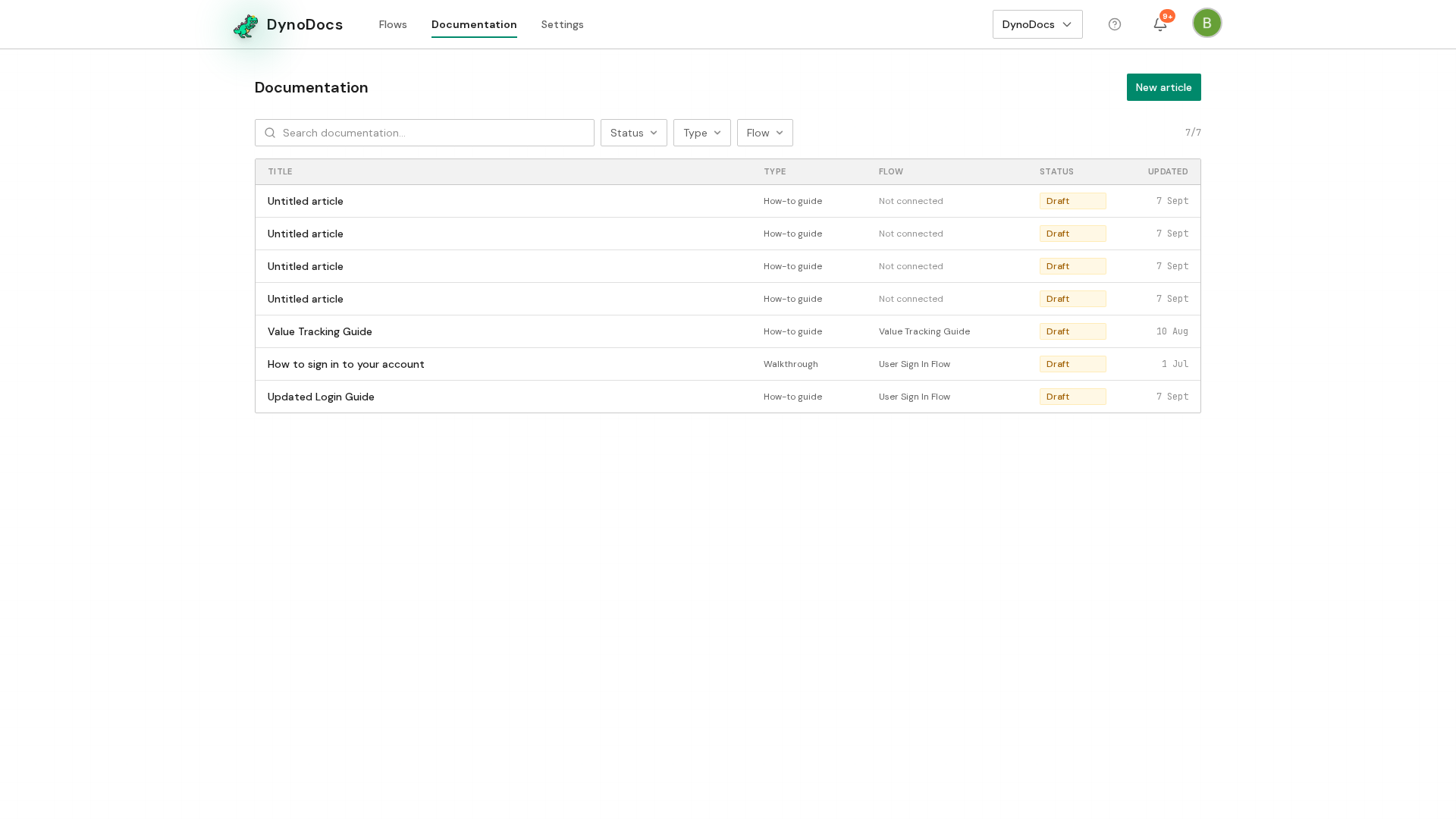
The guide opens with its steps listed, and each step's screenshot has an Add highlight button beneath it. Click Add highlight under the screenshot that needs one.
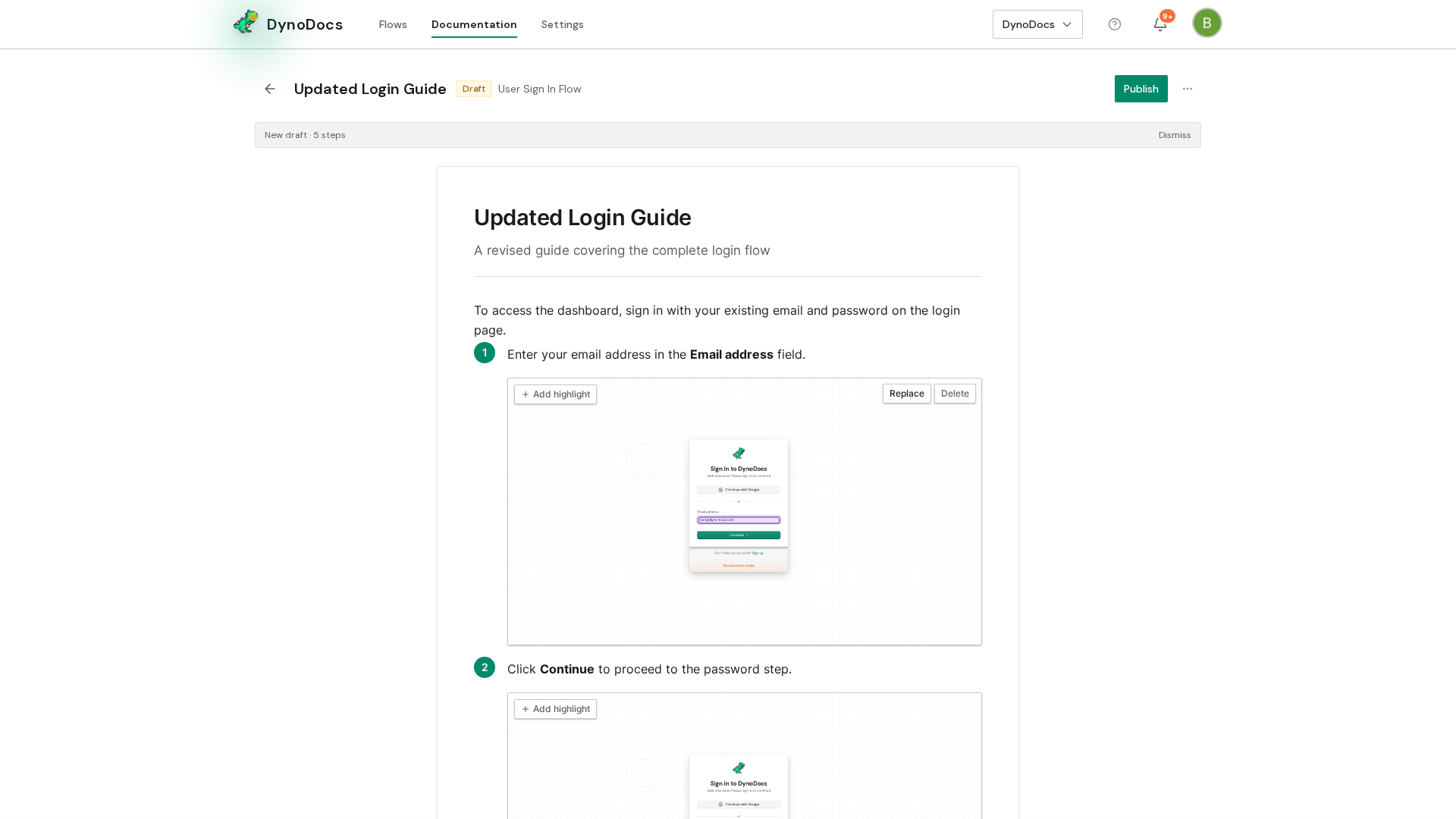
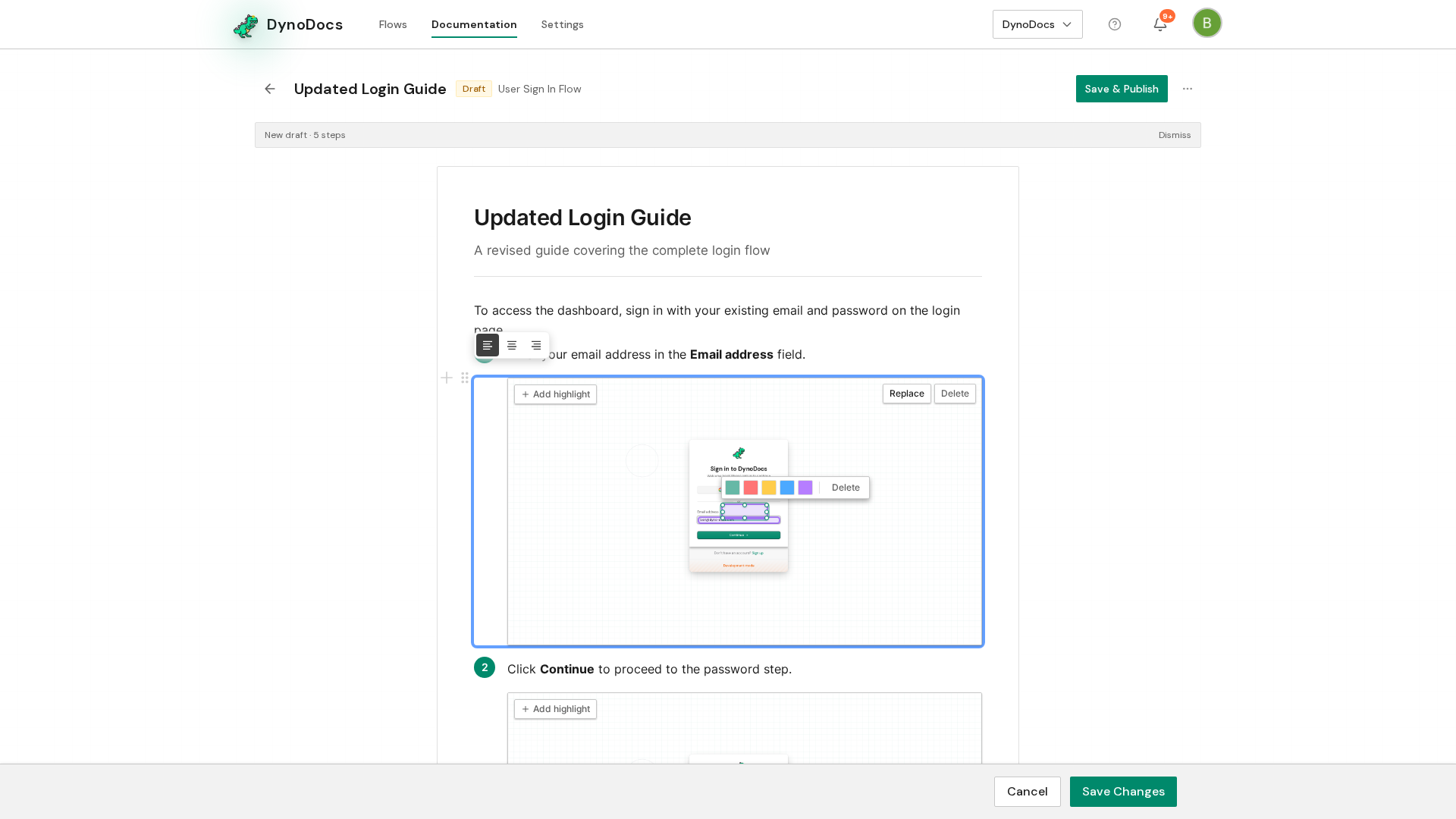
The button changes to Click or drag on image. Click, or click and drag, on the part of the screenshot the reader should look at. A highlight box appears there, and you can move it, resize it from its corners, or change its color.
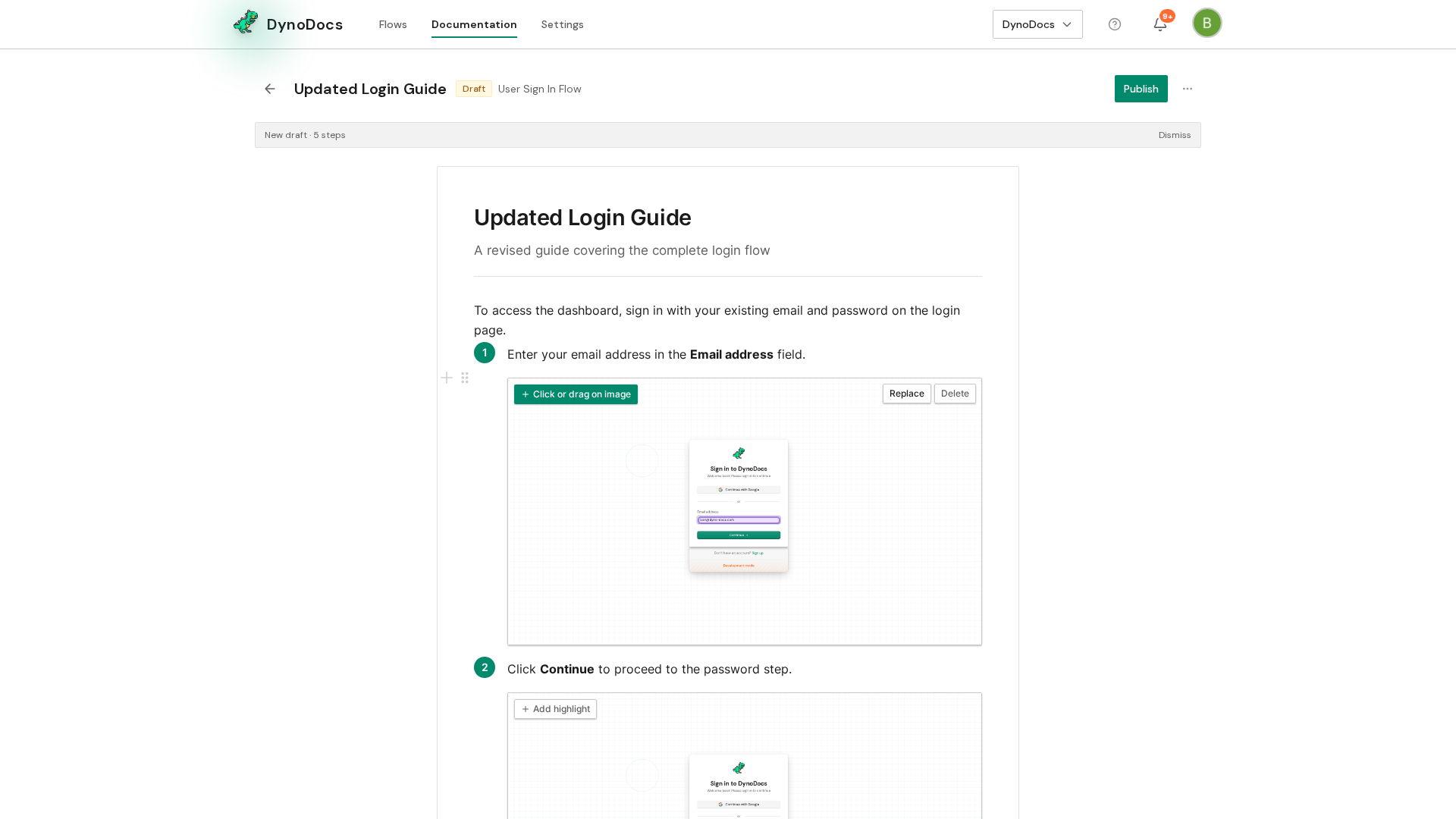
The highlight sits on the screenshot, and a bar at the bottom of the page offers Save Changes so you can keep it.
Prerequisites
- A draft guide in your workspace with at least one step screenshot
Troubleshooting
- Clicking on the screenshot does nothing: check that the button beneath it reads Click or drag on image. If it still says Add highlight, click it first.