
Editing in DynoDocs is click-to-edit. The title and summary turn into text boxes right where they sit, so there is no separate edit button to find, and nothing is stored until you use the save bar that appears at the bottom of the page.
Open the draft guide
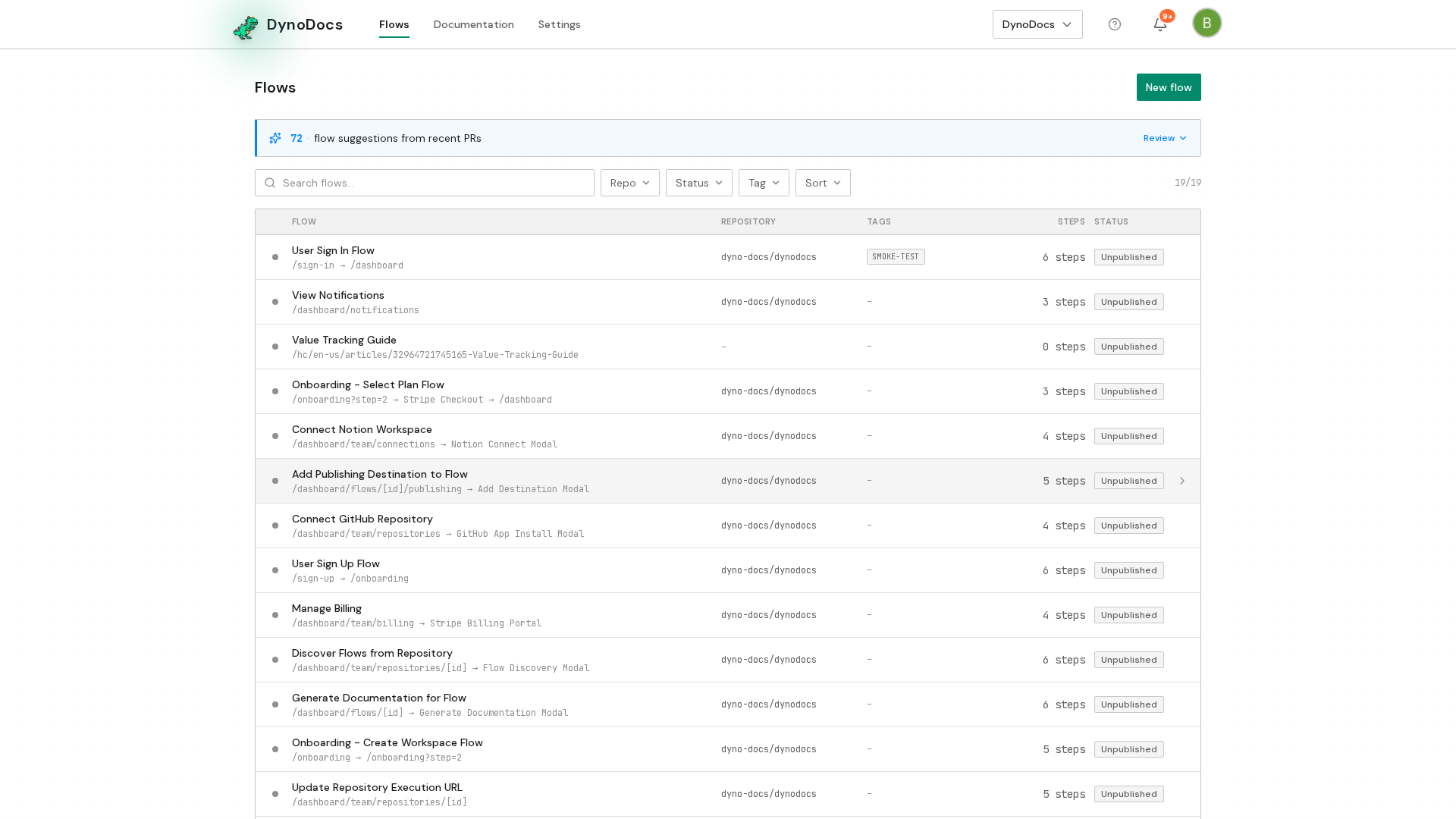
From your dashboard, click Documentation in the top navigation.
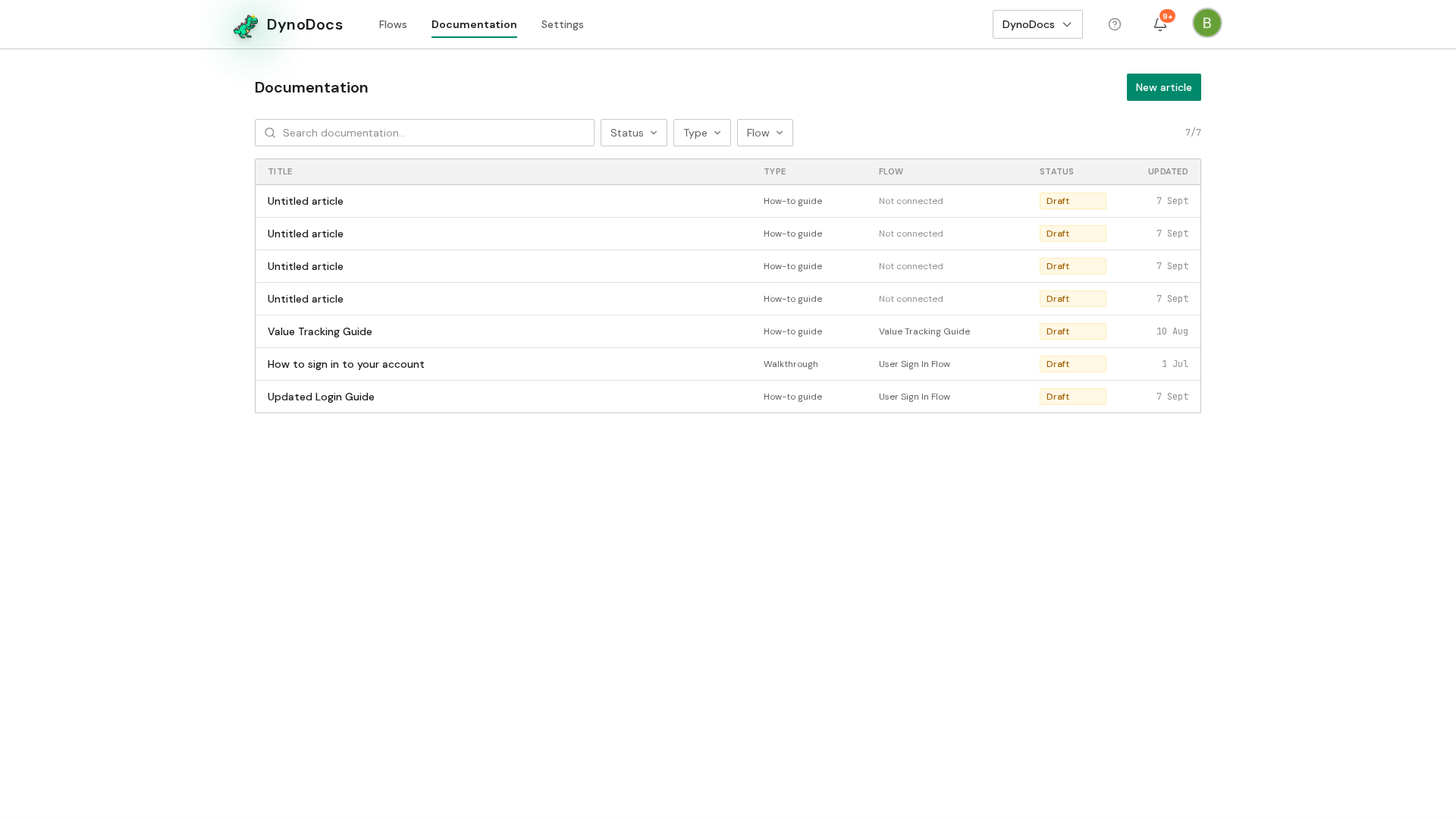
Every guide in your workspace is listed here with its status. Click the draft guide whose wording you want to change.
Edit the title and summary in place
The guide opens with its title, summary and steps. Click the title at the top of the page, and it turns into a text box where it sits.
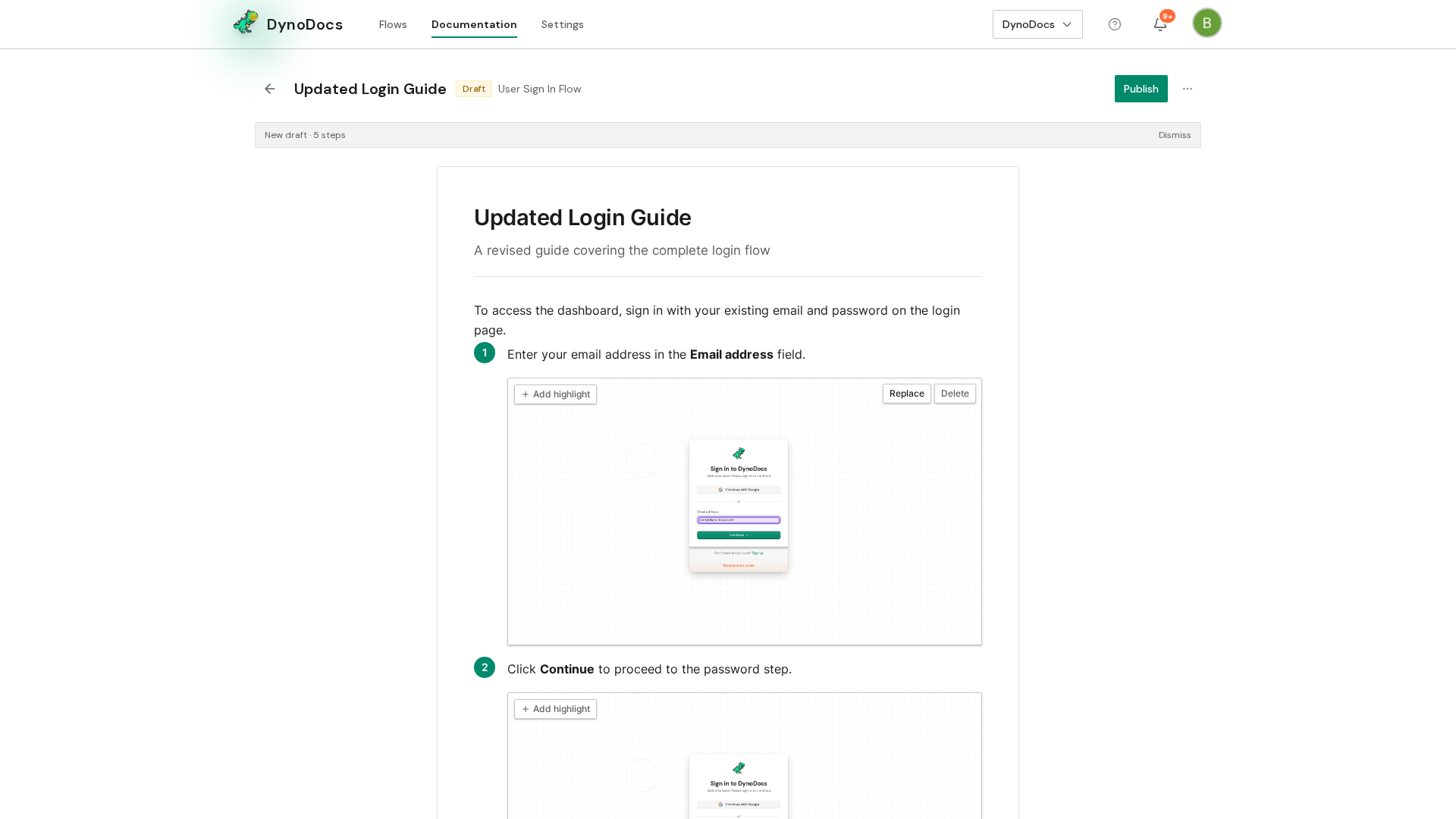
Type the title you want the guide to have.
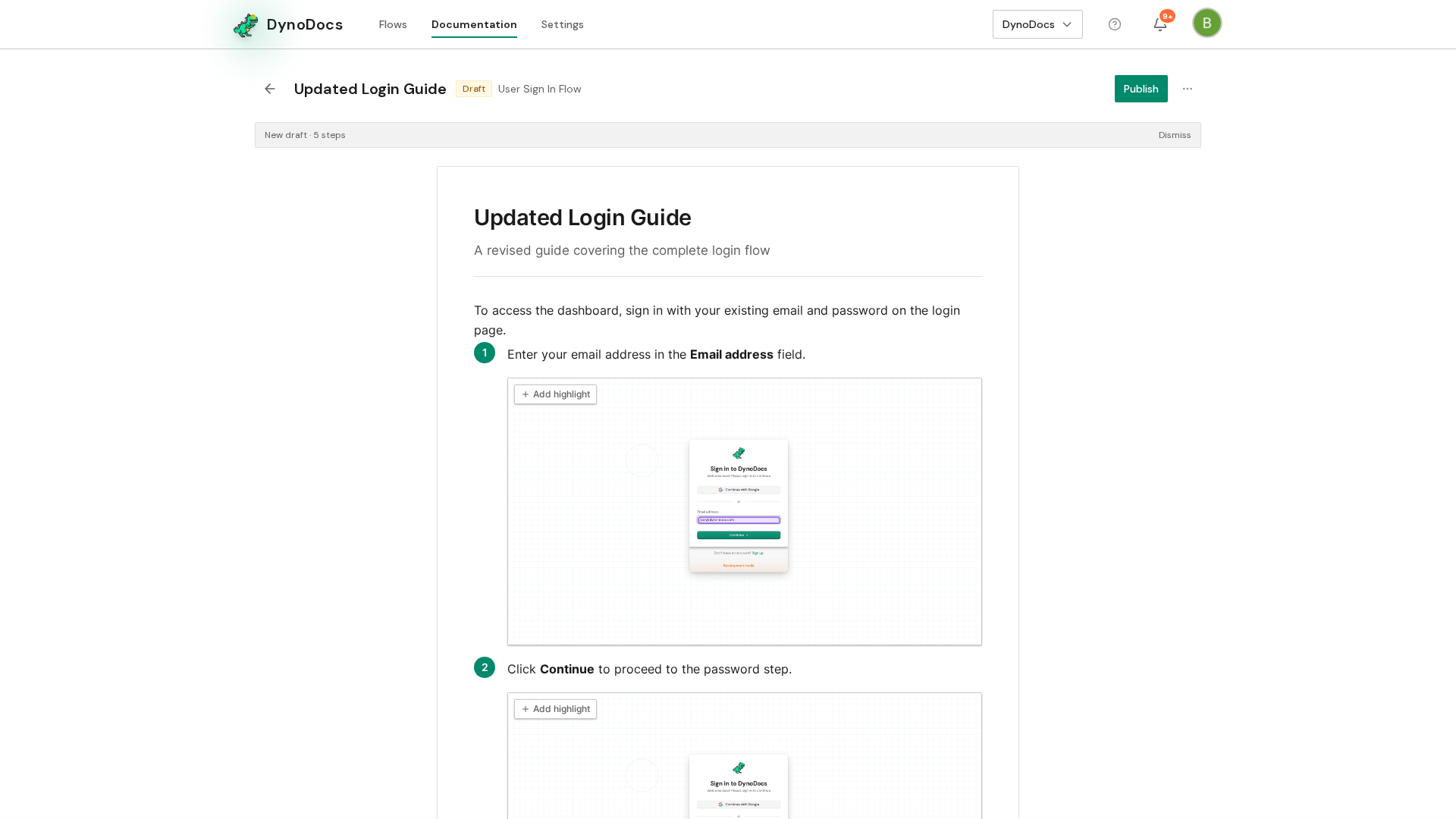
Click the summary underneath. Your new title is kept, and the summary opens for editing in the same way.
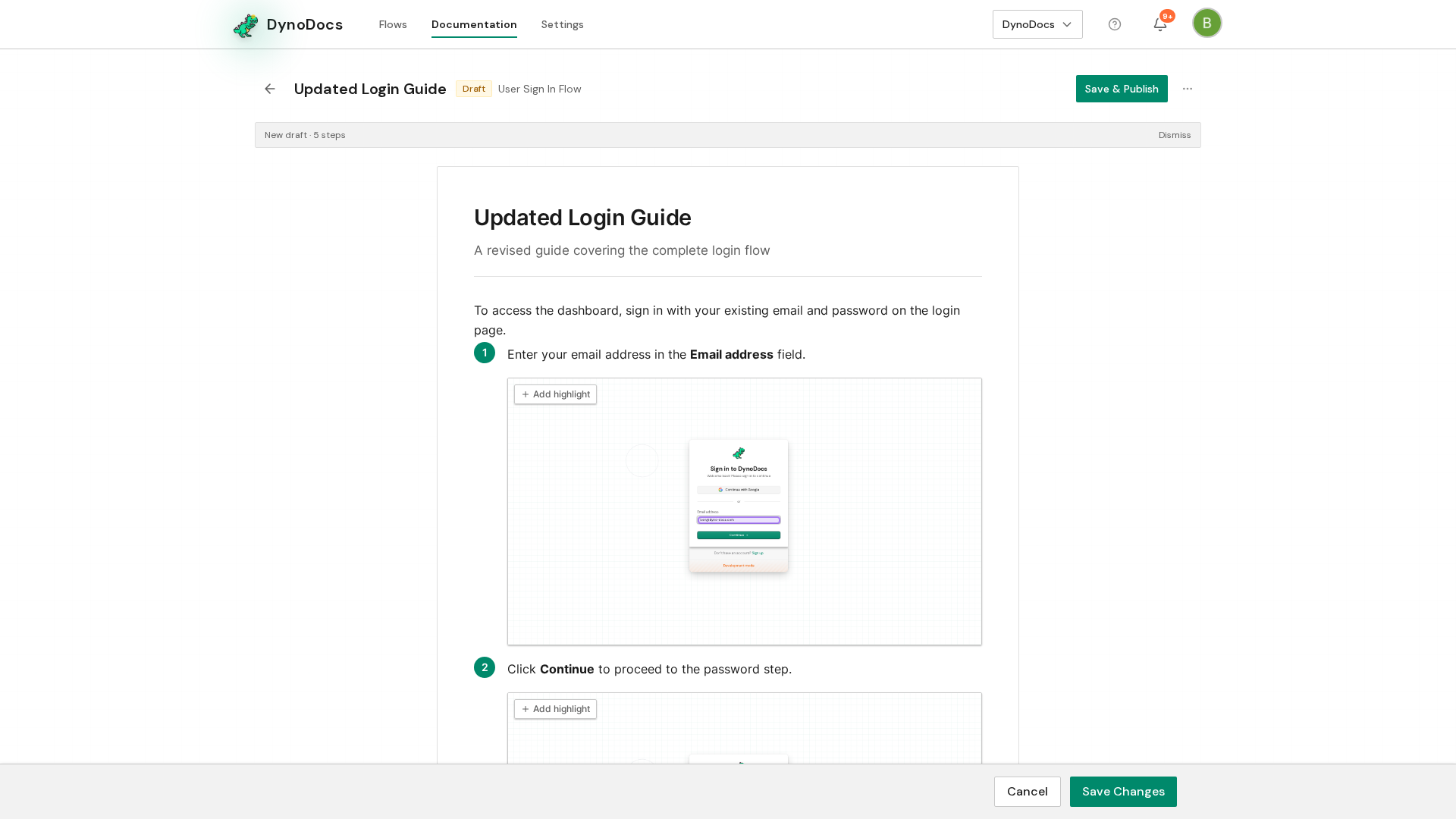
Type the summary you want, describing in a line or two what the guide covers.
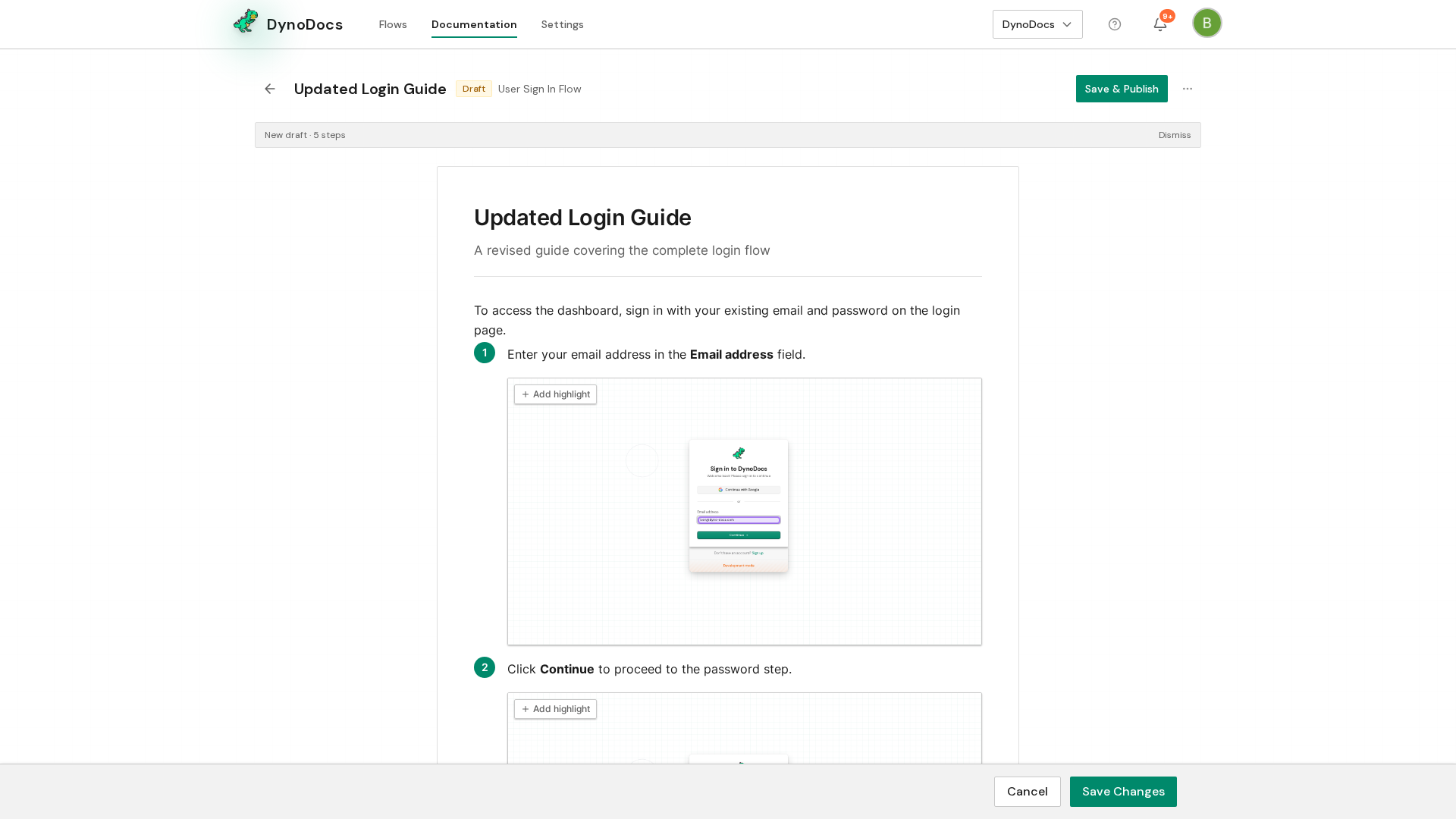
Save your changes
A bar appears at the bottom of the page offering Save Changes and Cancel. Click Save Changes to keep your new wording.
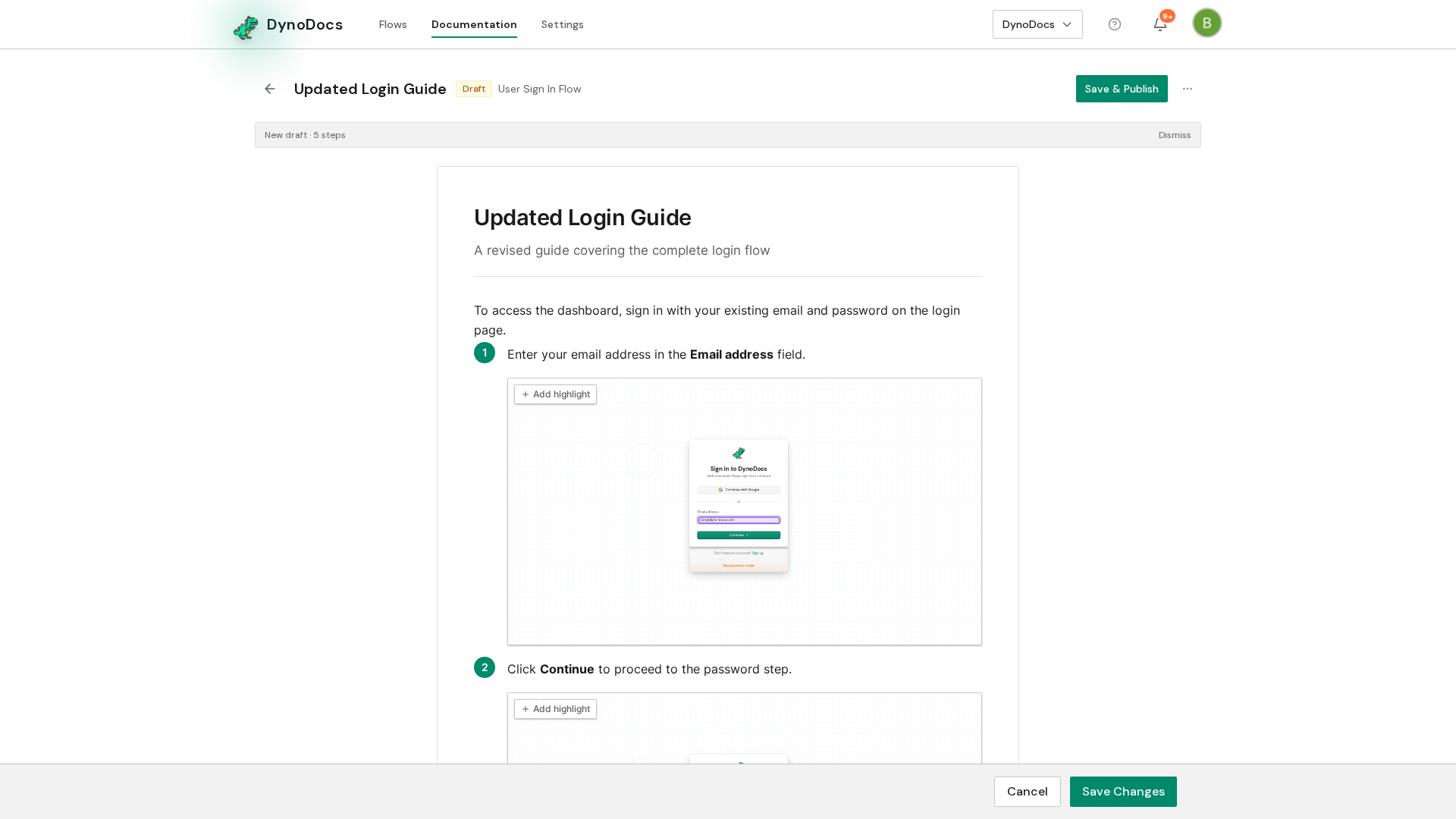
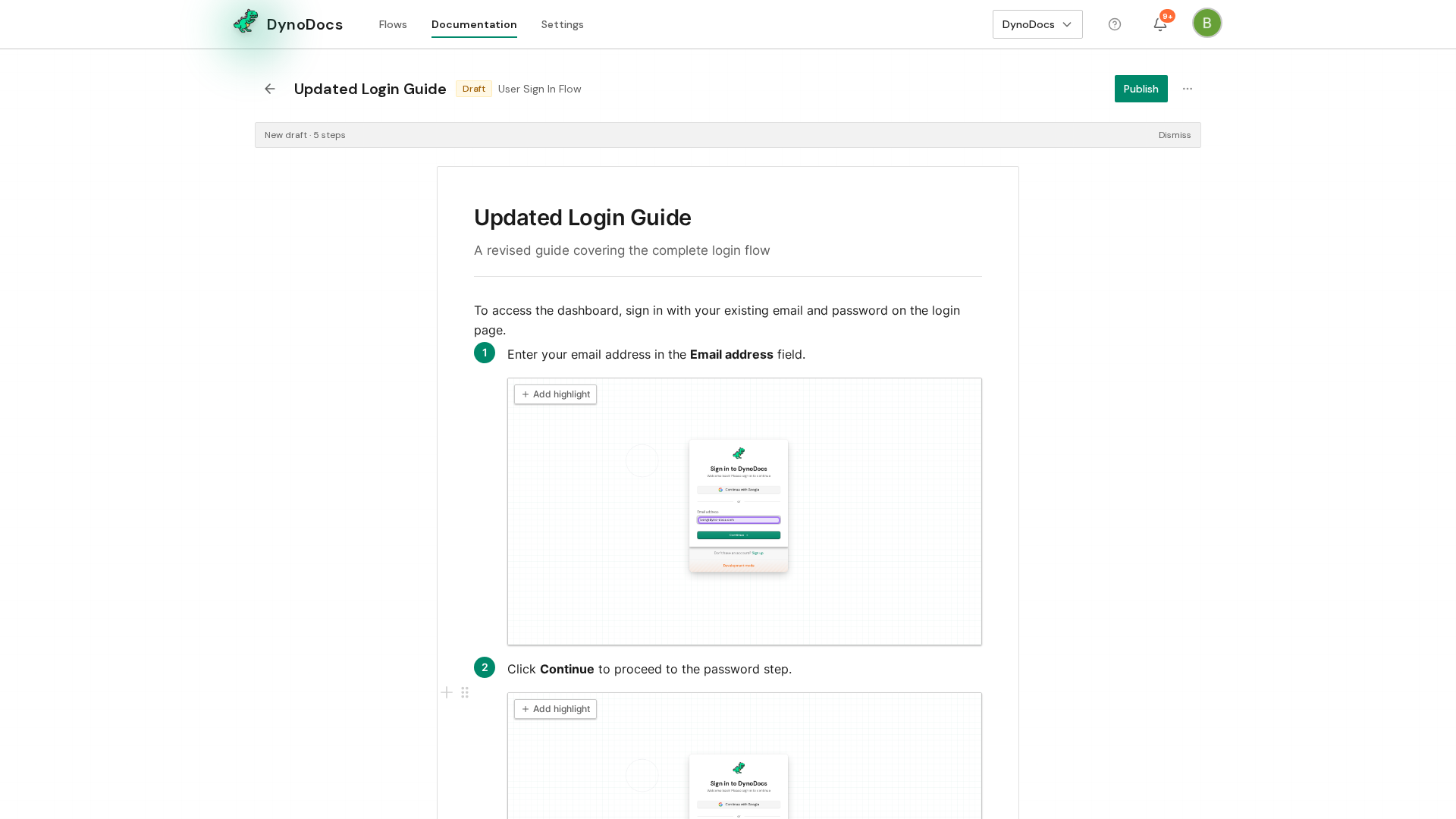
The bar disappears once the guide is saved.
Prerequisites
- The guide you want to change must be a draft, since published guides open read-only.
Troubleshooting
- The save bar has not appeared: your edits are only picked up once you have changed the text, so click the title or summary and type your change.
- You want to undo what you typed: click Cancel in the bar at the bottom instead of Save Changes.